To turn long videos into short clips, follow the same seven steps every time: import the source, get a timestamped transcript, find the strongest moments, trim each one into a self-contained clip, add captions, reframe to vertical 9:16, and export. The order matters. Working from the transcript instead of scrubbing through hours of footage is what makes the process fast and repeatable.
This guide walks through each step, explains the decisions that make a clip work, and shows how to do the whole workflow in one app.
Why repurpose long videos into short clips?
A single podcast episode, interview, webinar or livestream usually contains several moments that can stand on their own: a strong opinion, a clear explanation, a funny exchange, a surprising story. Most viewers will never watch the full recording, but many will watch 30 to 60 seconds of its best part.
Repurposing long video gives you:
- More posts from work you already recorded
- A way for new people to discover the full episode
- A steady posting schedule without filming something new every day
- Real feedback on which topics people care about
The catch is time. Watching a 90-minute recording to find five good moments is slow. A repeatable workflow fixes that.
Step 1: Start with a clean source file
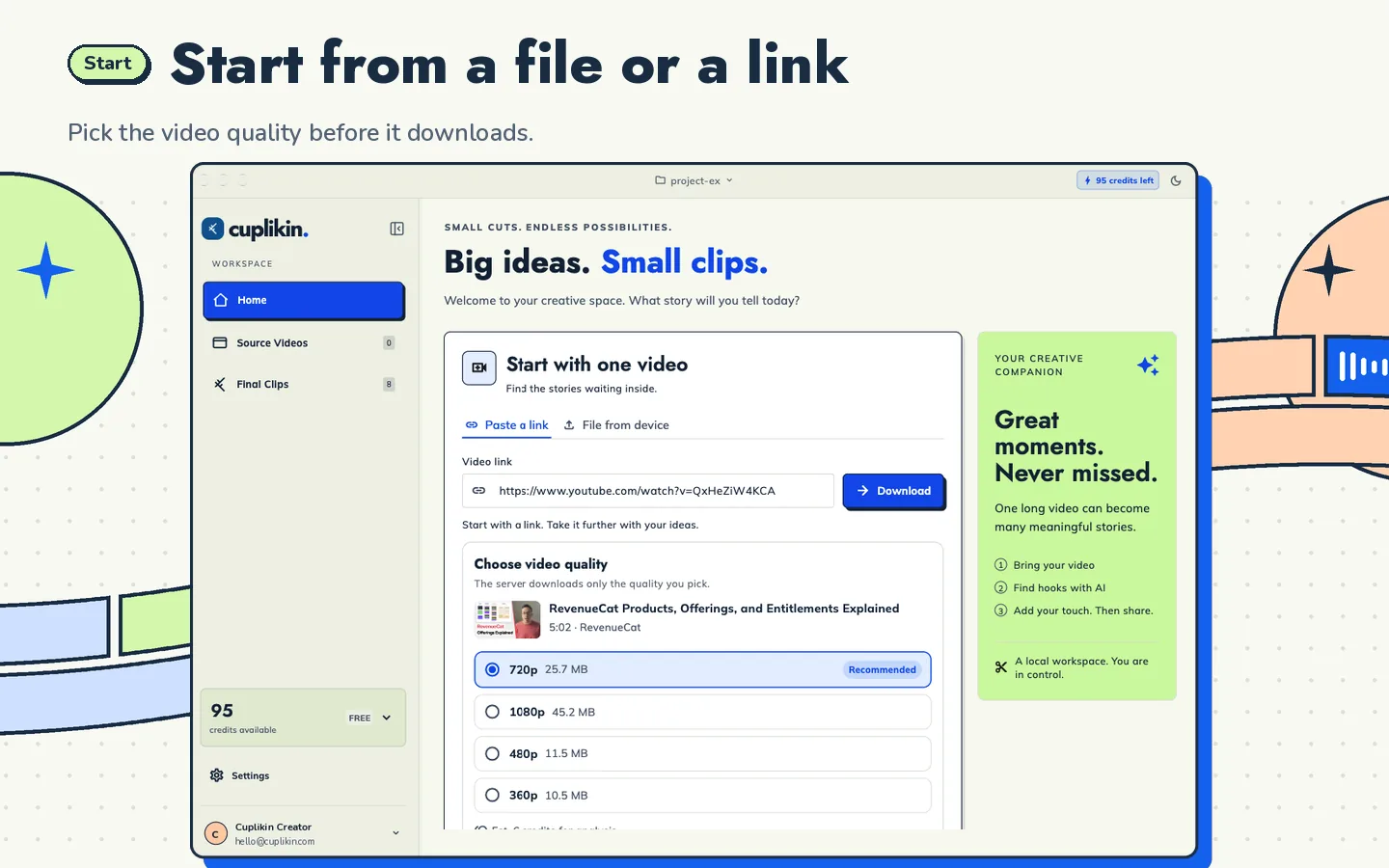
Use the highest-quality version of the recording you have. Clips are cropped to vertical, so the source loses resolution when you reframe it. A 1080p or 4K horizontal source gives you room to crop without the result looking soft.
Good habits before you start:
- Keep the original file, not a re-uploaded or compressed copy
- Check that the audio is clear, since captions depend on it
- Note the topic and guests so your titles are accurate later
If the video is already online, you can often start from a link. Cuplikin accepts a local video file (MP4, MOV or MKV on Mac; Photos or Files on iPhone) or a supported URL such as YouTube, which is downloaded through Cuplikin's service.
Step 2: Transcribe the whole video
A timestamped transcript turns hours of video into something you can skim in minutes. You can search it, read it, and jump straight to any line.
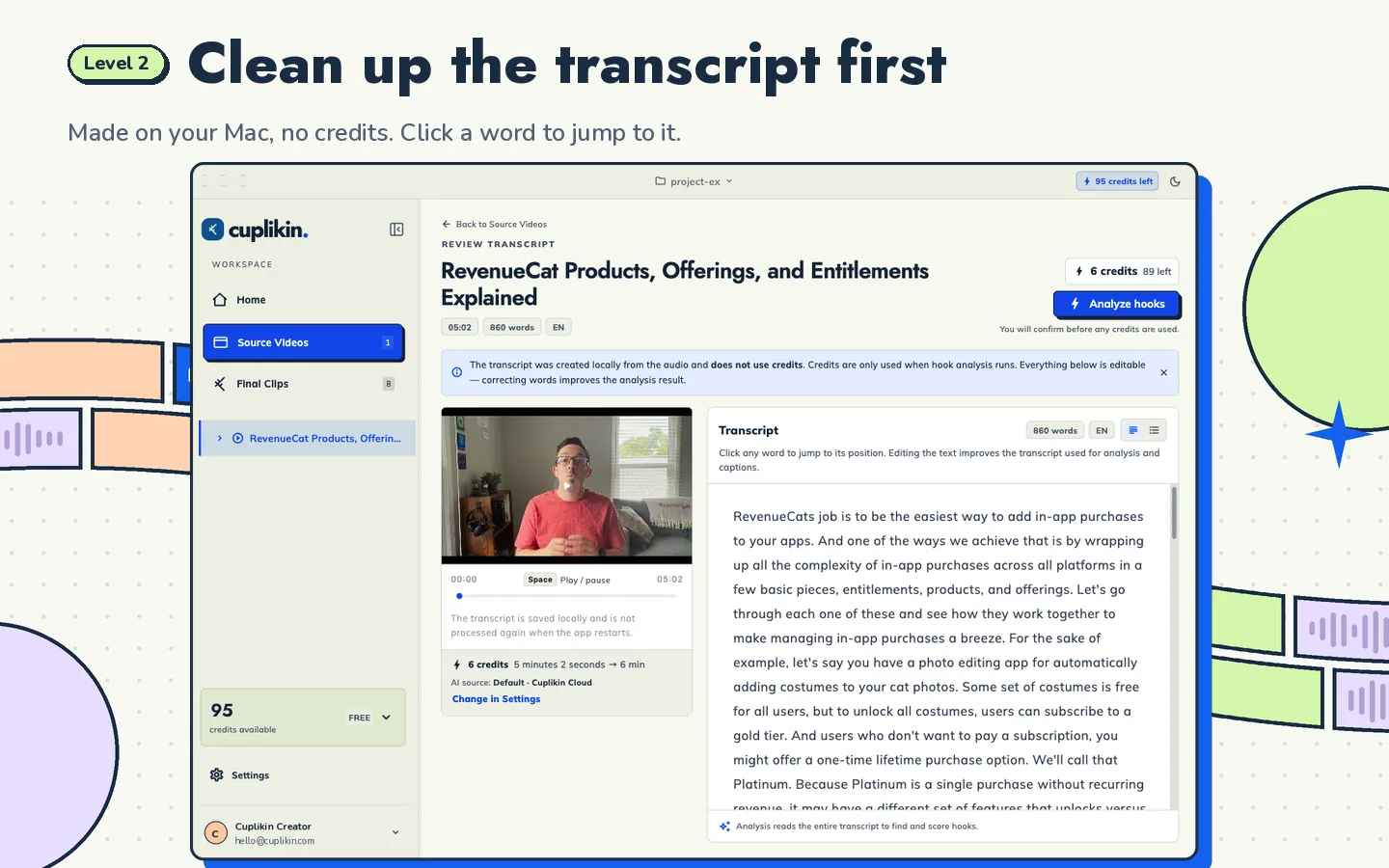
Before you go further, review the transcript while the video plays. Fix names, product terms and anything the speech recognition misheard. Every mistake you leave here will show up later in your captions.
In Cuplikin, transcription runs on-device or with Cuplikin Cloud. You can click any word to jump to that moment and correct words before continuing.
Step 3: Find the hooks
A hook is a moment that makes someone stop scrolling within the first few seconds. In a long recording, look for:
- A bold or contrarian statement
- A clear question followed by a clear answer
- A short story with a turning point
- A specific number, mistake or lesson
- Emotion: laughter, surprise, disagreement
Read the transcript with these patterns in mind and mark candidates. Then ask one question of each: does this make sense to someone who has not seen the rest of the video? If not, it needs more context or it is not a clip.
For a deeper method, read how to find the best hooks in a long video.
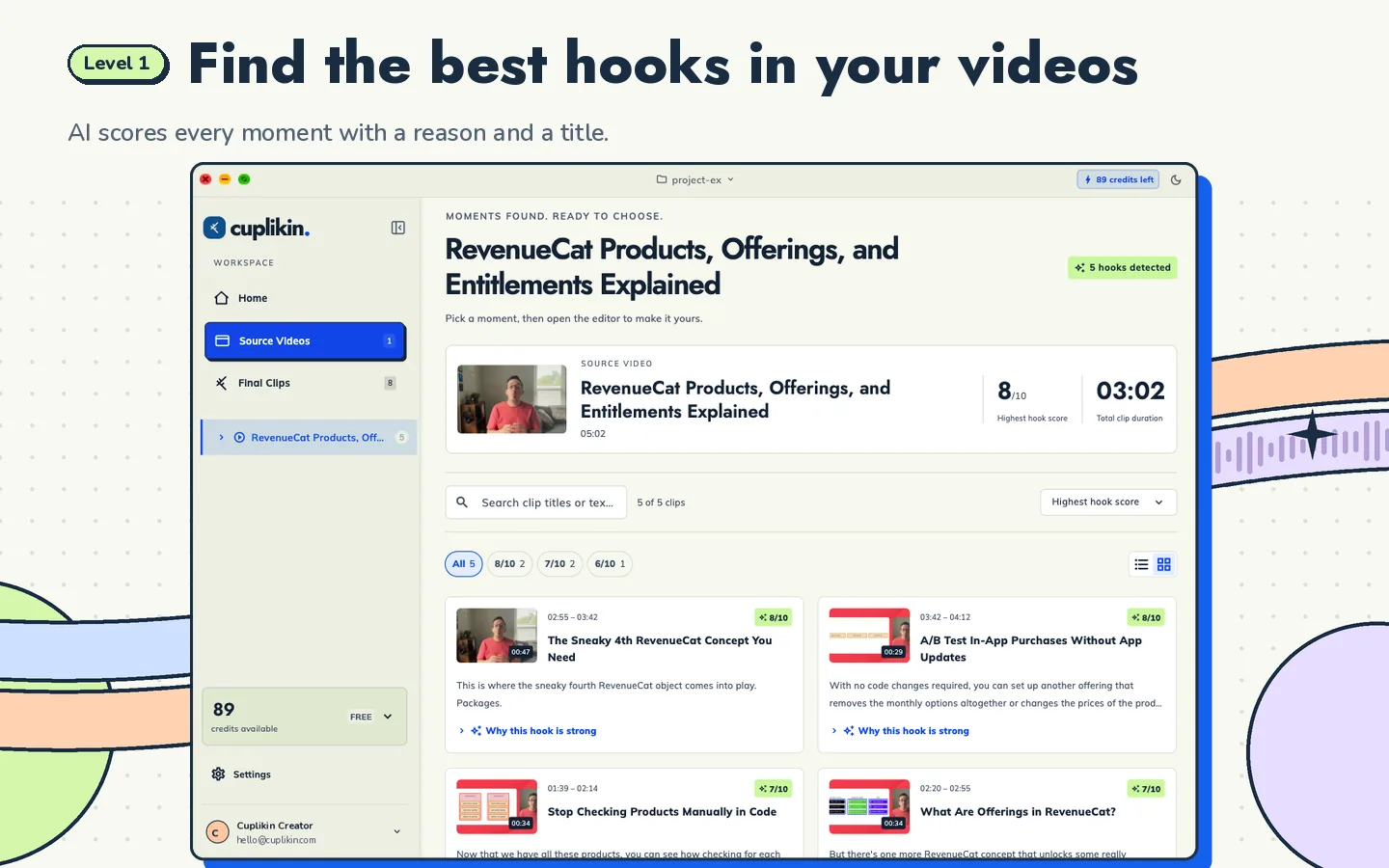
Cuplikin's AI hook detection finds engaging segments, scores each from 1 to 10, explains why the hook is strong, and suggests a title idea. You still choose. Scores help you judge ideas quickly; they do not guarantee views.
Step 4: Trim each clip so it stands alone
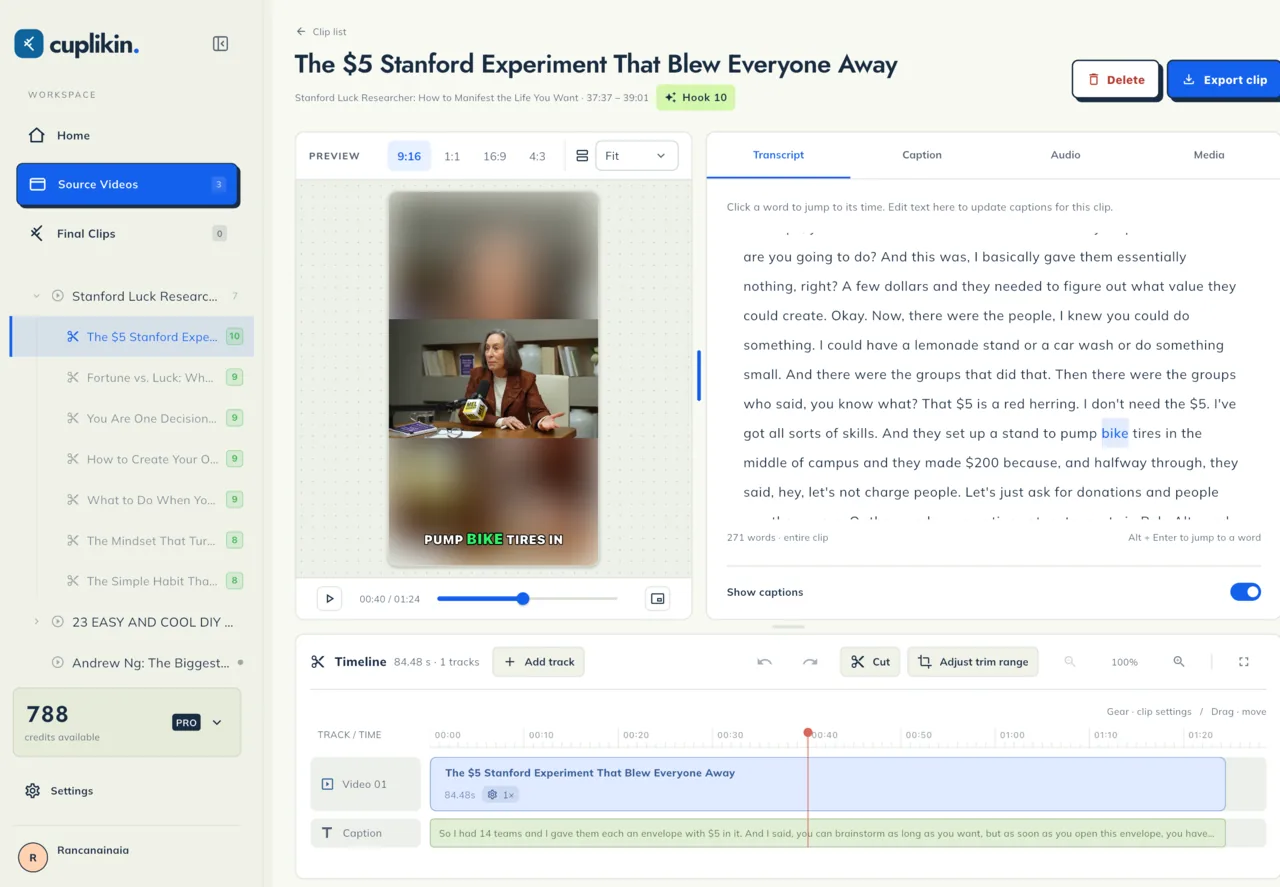
Good trimming is mostly about the first and last seconds.
- Start on the hook itself, not on the sentence before it.
- Cut filler like "so, um, yeah" at the start.
- End right after the payoff, not when the speaker trails off.
- Keep only enough context for a new viewer to follow.
Short-form platforms change their maximum lengths from time to time, so check the platform's current limit. Many effective clips land between 20 and 60 seconds, but length should follow the idea, not a rule.
In Cuplikin you trim on a timeline, and editing the transcript word by word updates the captions. You can also add video, image or audio tracks and change speed and volume.
Step 5: Add captions people can read
Many people watch short videos with the sound off, and captions also help viewers follow fast speech. Keep them:
- Large enough to read on a phone
- Short, two to five words on screen at a time
- Placed away from the platform's buttons and text
- Accurate, which is why Step 2 matters
Word-by-word highlighting helps the eye follow along. See auto captions for short videos for style choices.
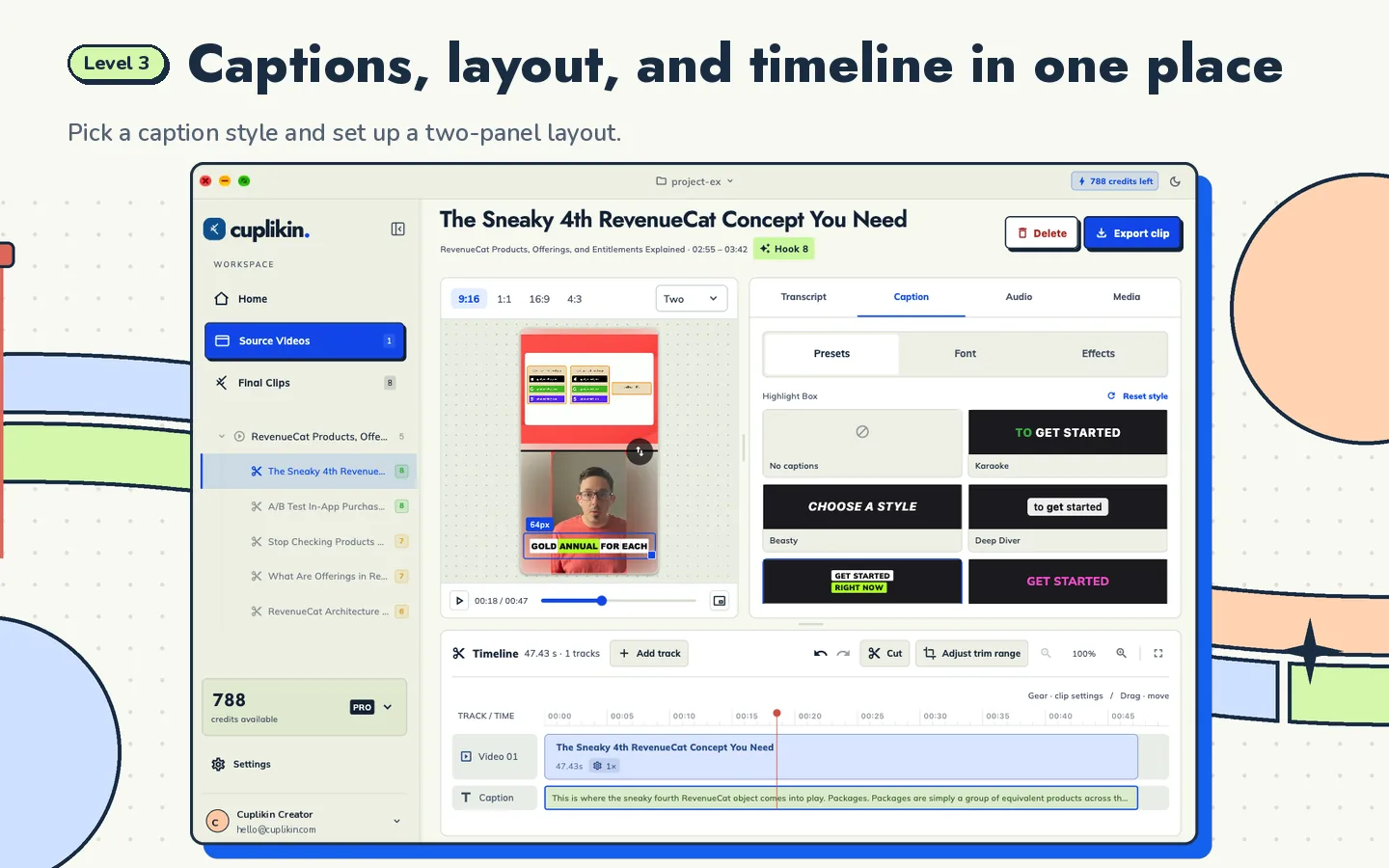
Cuplikin includes caption presets such as Karaoke, Beasty, Deep Diver and Highlight Box, lets you set size and position (top, center or bottom), and supports word-by-word highlight.
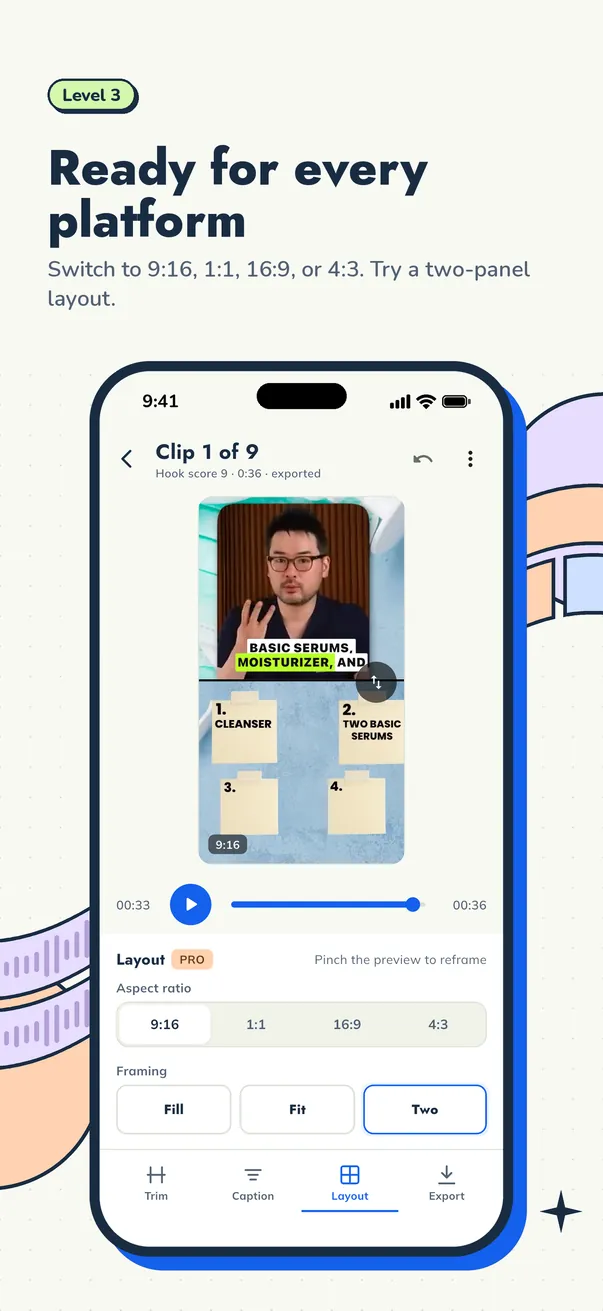
Step 6: Reframe to vertical
TikTok, Instagram Reels and YouTube Shorts are built for vertical 9:16 video, and 1080×1920 is the standard size. A horizontal recording needs to be reframed so the speaker stays in view.
Two common approaches:
- Crop and follow the speaker when one person is on screen
- Use a two-panel layout when you need both slides and a speaker, with slides on top and the speaker below
Cuplikin supports 9:16, 1:1, 16:9 and 4:3 (plus a 9:8 crop on Mac), Fill or Fit, two-panel layouts, and cropping a panel to frame the speaker's face. More detail is in how to convert horizontal video to vertical and aspect ratios for TikTok, Reels and Shorts.
Step 7: Export and write the post
Export at a resolution and frame rate that match your source. Do not upscale a 720p source to 4K expecting it to look sharper. For settings by platform, see export settings for TikTok, Reels and Shorts.
Then write a short title and caption for each clip. Lead with the idea of the clip, not the name of the show.
Cuplikin exports up to 4K with your choice of resolution, frame rate, bitrate and codec, and lets you write a title and social caption for each clip. On Mac, clips save to a folder you choose; on iPhone and Android, they save straight to Photos or your gallery. There is no watermark, and a "Made with Cuplikin" end card is optional.
A simple weekly routine
Once the steps feel familiar, batch them:
- Import and transcribe all new recordings at once.
- Review transcripts and pick hooks in one sitting.
- Trim, caption and reframe the best five to ten clips.
- Export everything and schedule posts across the week.
- Check which topics did well and look for similar moments next time.
If you plan to do this for clients, read how to become a video clipper. Podcasters can follow the dedicated guide on turning a podcast episode into Shorts, Reels and TikToks, and teams with recorded events can use how to repurpose webinars and interviews. If you work mostly on a phone, see how to clip long videos on iPhone or Android.
FAQ
How many short clips can I get from a one-hour video?
It depends on the content, not the length. A focused interview may give you ten strong moments, while a loose conversation may give you three. Aim for quality: a few clips that stand alone will do better than many that need context.
Do I need to edit every clip by hand?
You need to review every clip, but you do not need to start from scratch. AI hook suggestions get you to a shortlist quickly. Then you make the decisions: which hooks to keep, where to cut, and how to frame them.
Can I repurpose long videos on my phone?
Yes. Cuplikin runs on iPhone, iPad and Android as well as Mac, and projects and media stay on the device. On phones, exported clips save straight to Photos or your gallery.
Try it with Cuplikin
Cuplikin brings the whole workflow into one app: import, transcribe, find hooks, trim, caption, reframe and export, with no watermark. It is free to download for Mac, iPhone, iPad and Android. Download Cuplikin and turn your next long recording into clips.