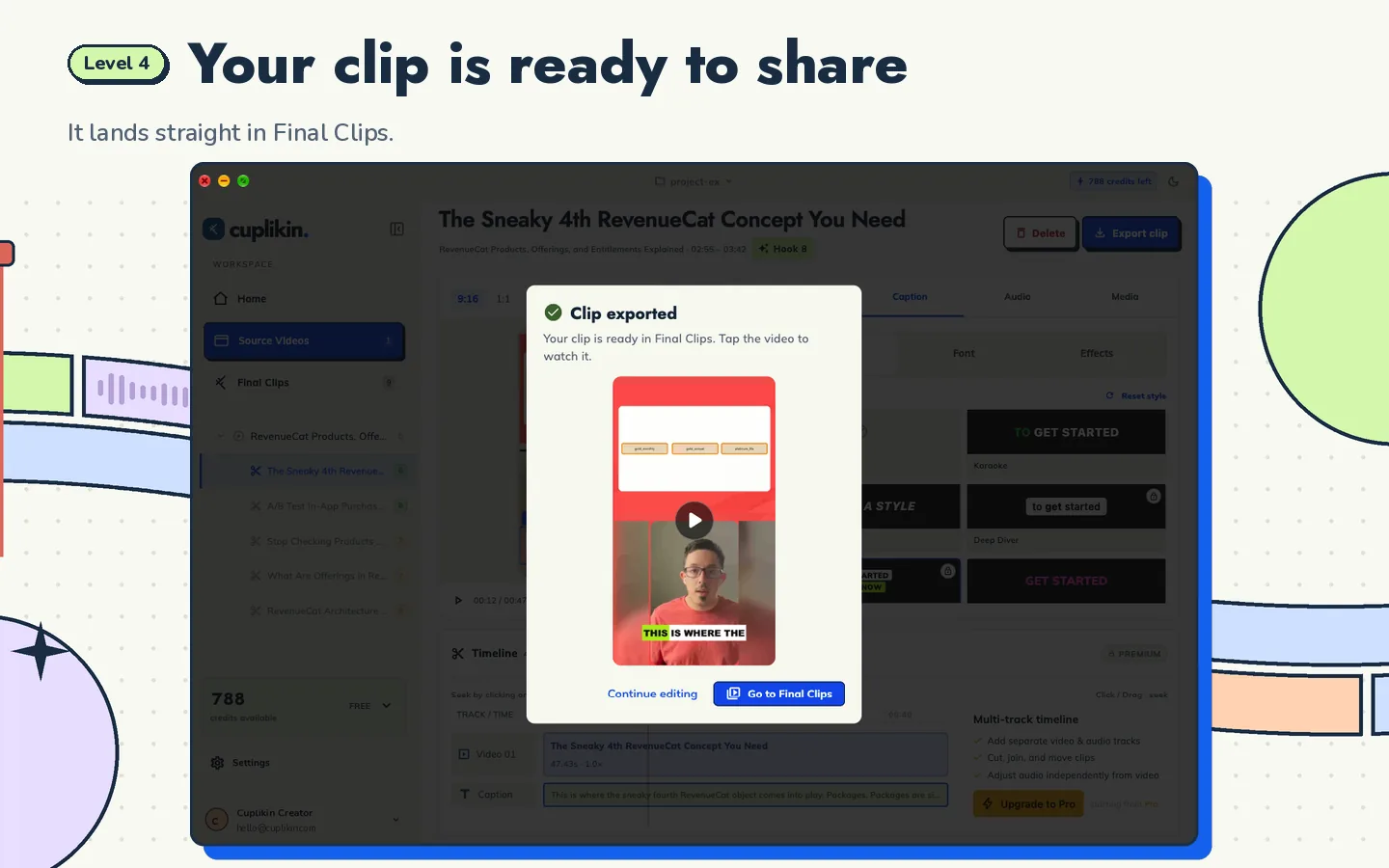
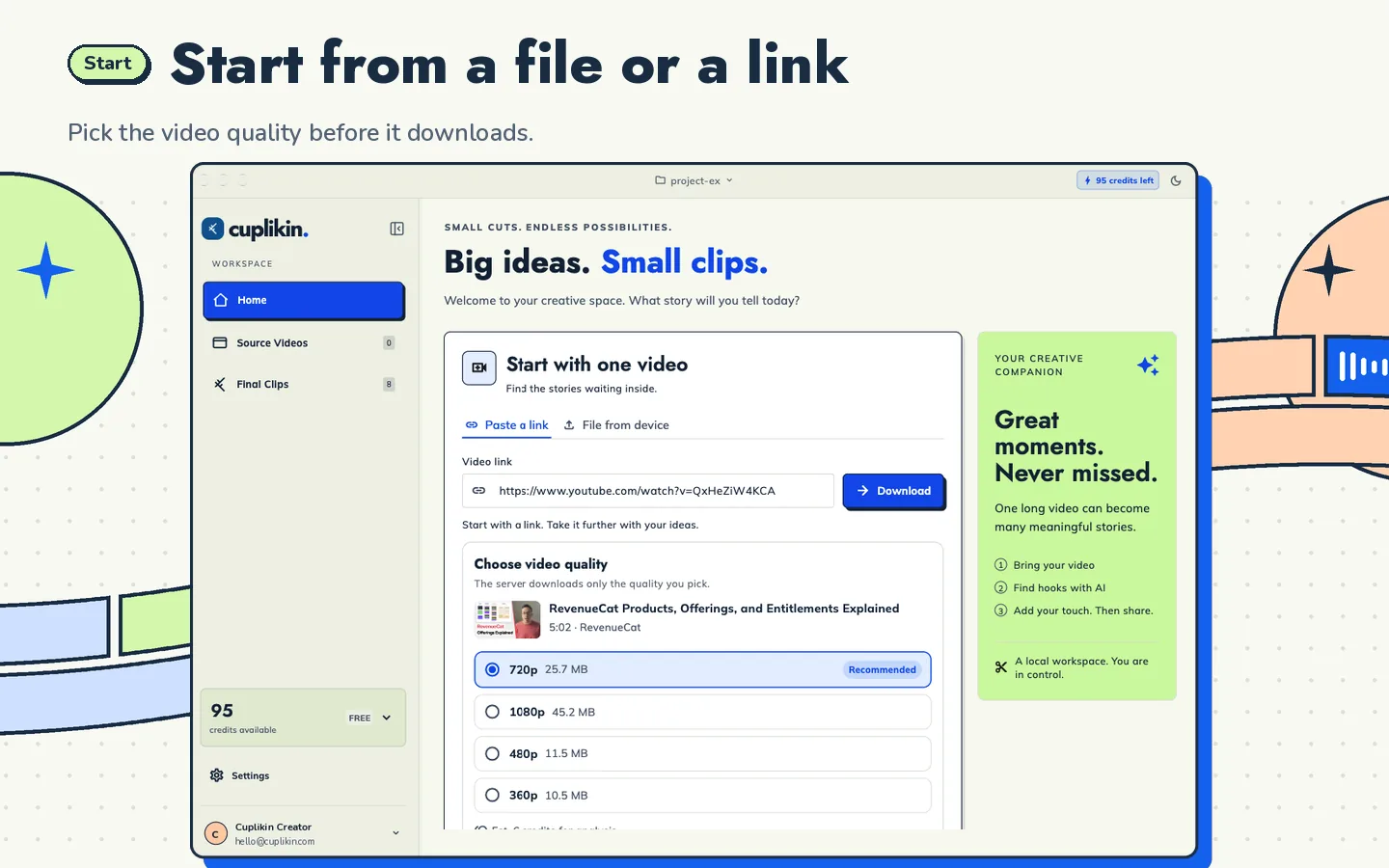
To clip a long video on your iPhone or Android phone, use an app that can find the best moments for you. Scrubbing through an hour of footage on a small screen is slow. A good mobile workflow goes like this: import the video, get a timestamped transcript, pick the strongest segments, trim them, add captions, reframe to 9:16 and save the clips to your Photos or gallery.
The built-in photo editors on most phones can trim a video, but they don't help you find the moment worth trimming in a 60-minute podcast. This guide walks through a phone-first workflow and the habits that make it work on a small screen.
Why clipping on a phone is harder than it looks
Phones are great for short edits and painful for long ones:
- Finding moments takes forever. You can't skim an hour of audio by dragging a thumbnail strip.
- Precise trimming is fiddly. Fingers are less precise than a mouse, especially near the start of a sentence.
- Captions take effort. Typing them by hand on a phone keyboard is slow.
- Reframing matters more. Most long videos are horizontal, and a lazy crop cuts people out.
A transcript-first workflow fixes most of this. Once you can read the video, you can find moments by scanning text instead of scrubbing.
Step 1: Import the long video
Start with the best-quality copy you have. You have two options:
- A file on your phone, such as a recording in Photos or a file saved in Files.
- A link to a video you have the rights to use, for example your own YouTube upload.
Check that you have permission to clip the content. Clipping someone else's video usually needs their consent or a clipping agreement. If you're starting out as a clipper, our guide on how to become a video clipper covers this.
Step 2: Transcribe and fix the transcript
A timestamped transcript makes everything else faster. Once you have it:
- Read it while the video plays.
- Fix names, brand terms and numbers, since speech recognition often gets these wrong.
- Tap a word to jump to that point in the video.
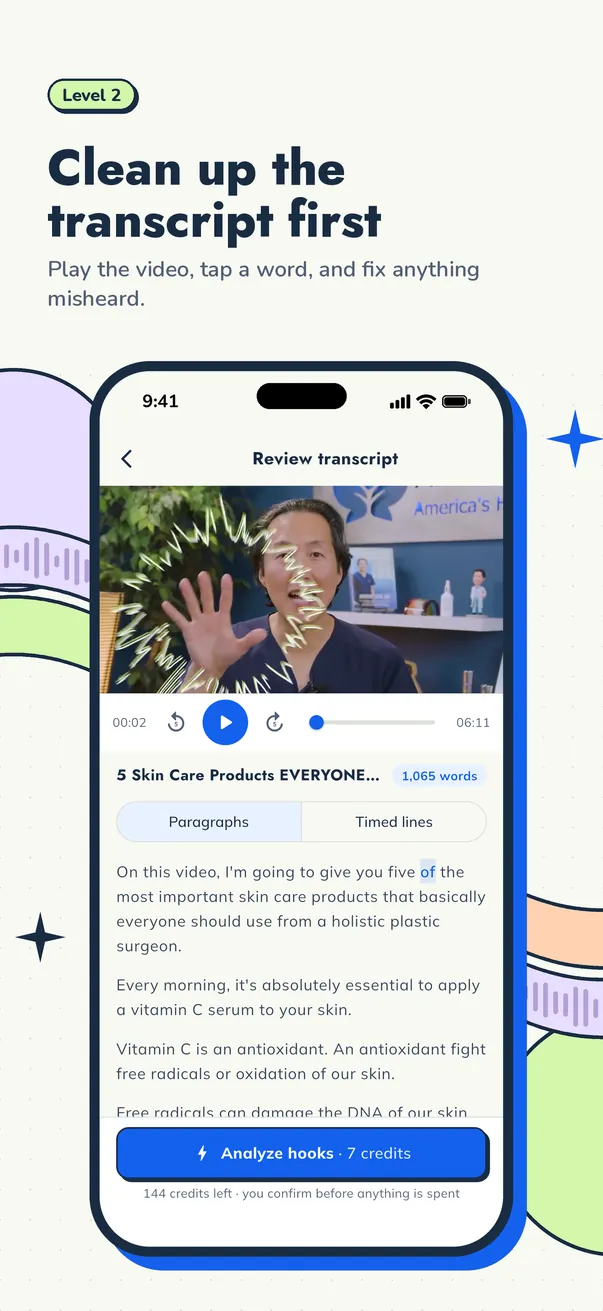
Fixing the transcript before you clip saves time later, because your captions come from it.
Step 3: Find the best moments
Look for segments that work on their own, without the rest of the episode:
- A strong opinion or a surprising claim in the first few seconds
- A short story with a clear ending
- A practical tip someone can use today
- A question followed by a sharp answer
On a phone, it helps to have this done for you, then review the shortlist. Our guide to finding the best hooks in a long video explains what makes a segment worth clipping.
Step 4: Trim tight
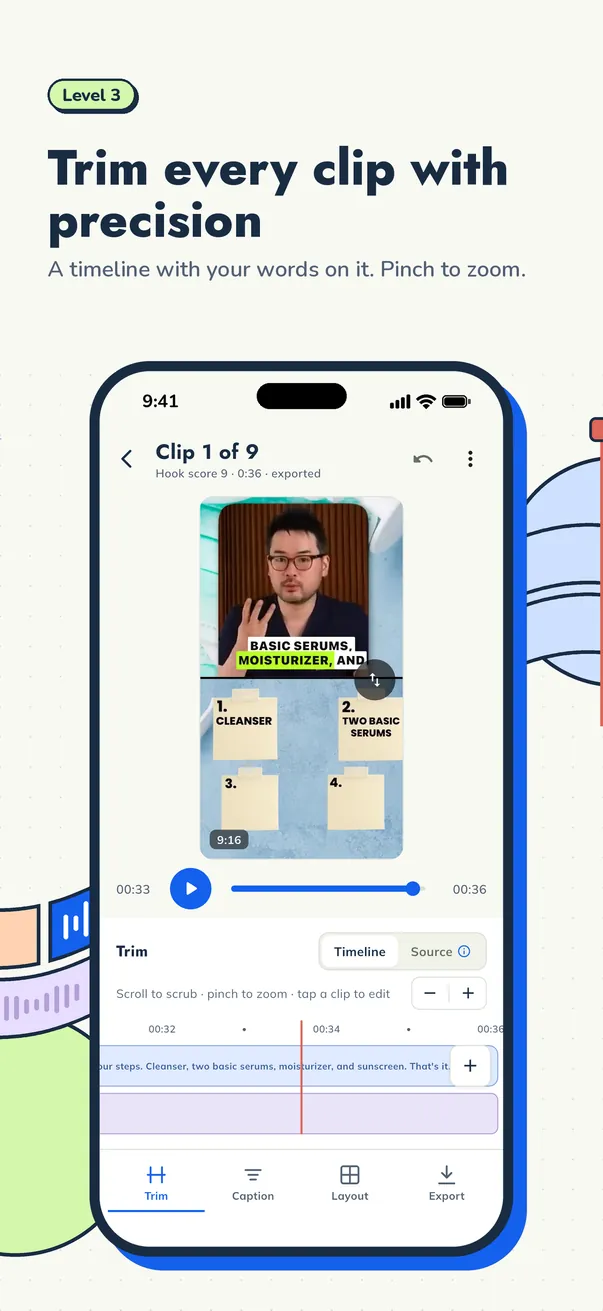
Short-form viewers decide quickly. When you trim:
- Start on the first word of the hook, not on a breath or "so, um".
- End right after the payoff line.
- Cut slow tangents in the middle if the clip still makes sense without them.
- Zoom the timeline in so your finger can hit the right frame.
Step 5: Add captions
Many people watch short videos with the sound off, so captions matter. Choose a style that's easy to read on a small screen, keep lines short, and keep captions away from the very top and bottom where the app's buttons sit. For style ideas, read auto captions for short videos.
Step 6: Reframe to 9:16
TikTok, Reels and Shorts are vertical. If your source is horizontal, crop to the speaker's face or use a two-panel layout instead of a plain center crop. Our guide on converting horizontal video to vertical covers each method.
Step 7: Export and save
Export at 1080×1920 for a sharp vertical clip, and save it straight to your camera roll so you can post from any app. Watch it once full-screen before posting.
How to clip long videos on your phone with Cuplikin
Cuplikin runs this whole workflow on iPhone, iPad (iOS/iPadOS 15+) and Android (7.0+):
- Import a video from Photos or Files, or paste a supported link such as YouTube.
- Transcribe on your device or with Cuplikin Cloud. Review the timestamped transcript while it plays, tap a word to jump, and correct words before you continue.
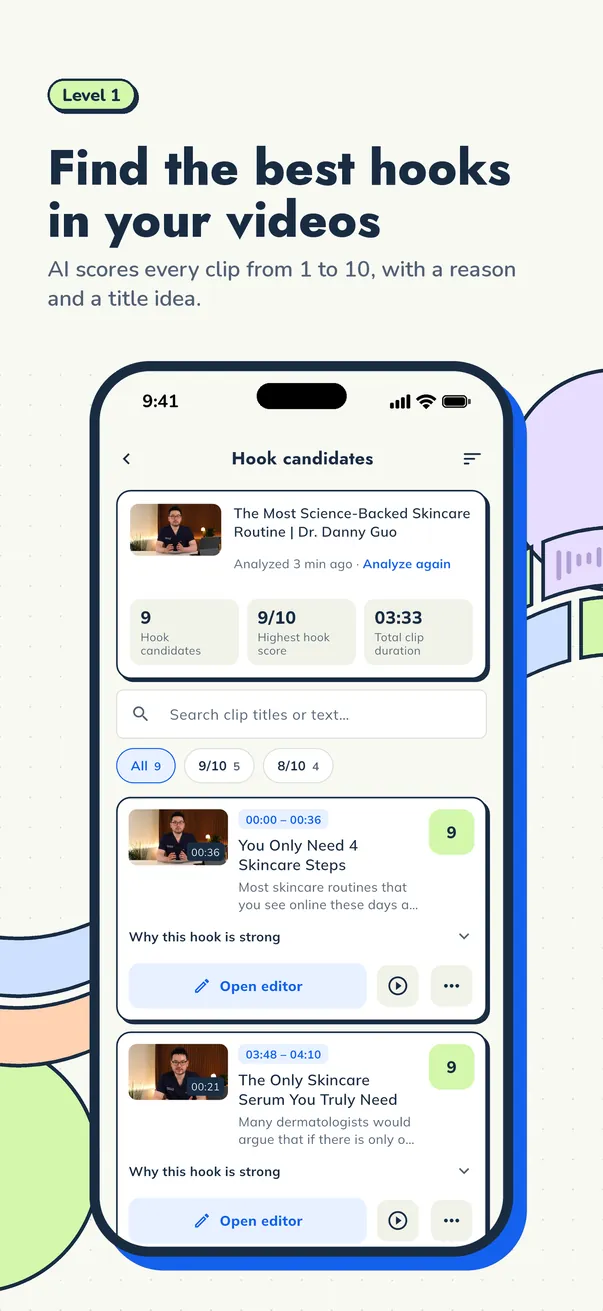
- Find hooks with AI. Cuplikin scores each segment from 1 to 10, explains why the hook is strong and suggests a title. You decide which ones to keep. Scores help you judge ideas; they don't guarantee views.
- Edit on a timeline: trim, change speed and volume, and add video, image or audio tracks. Editing a word in the transcript updates the captions.
- Style captions with presets like Karaoke, Beasty, Deep Diver and Highlight Box, with word-by-word highlighting and top, center or bottom placement.
- Reframe to 9:16, 1:1, 16:9 or 4:3, use a two-panel layout, and crop to the speaker's face with pinch to zoom.
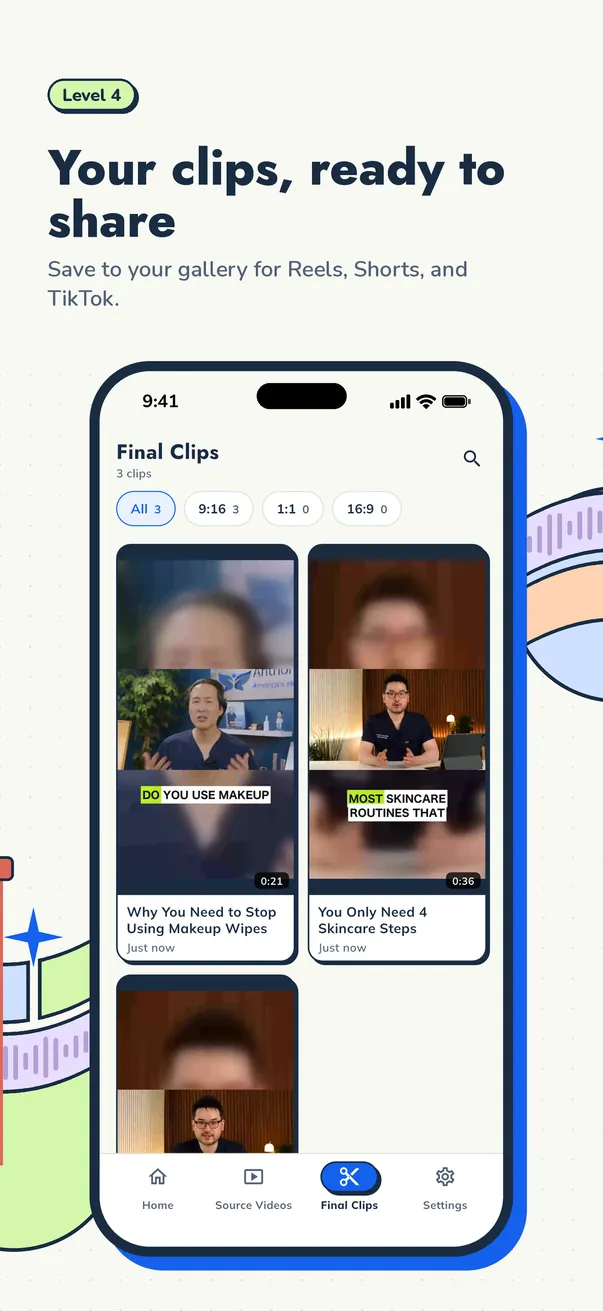
- Export up to 4K. Clips save straight to Photos or your gallery, with no watermark.
Your projects and media stay on the phone and never expire. Cloud features send only the minimum data needed, and your video file is not uploaded for hook analysis. Credits are only used when the analysis works. If a run fails or you cancel it, the credits come back.
Tips for a smoother phone workflow
- Keep your phone charged or plugged in while transcribing and exporting long videos.
- Free up storage before importing long, high-resolution recordings.
- Do the reading on the transcript, not the timeline. It's faster on a small screen.
- Batch your clips. Pick several hooks from one episode, then style and export them together.
- Check platform limits. Maximum clip length and upload rules change, so check each platform's current limit on YouTube Help, the Instagram Help Center or TikTok Support.
For the full process, including desktop, read the pillar guide: how to turn long videos into short clips.
FAQ
Can I cut a long video into short clips on my iPhone?
Yes. You can trim with the built-in Photos editor, but for long videos a dedicated app that transcribes the video and suggests the best moments is much faster. Cuplikin does this on iPhone and iPad with iOS/iPadOS 15 or later.
How do I make Reels from a long video on Android?
Import the video, transcribe it, pick a strong segment, trim it, add captions, reframe to 9:16 and export at 1080×1920. Cuplikin supports this workflow on Android 7.0 and later and saves clips straight to your gallery.
Do my videos get uploaded when I clip on my phone?
In Cuplikin, projects and media stay on your phone. Transcription can run on-device. Cloud features send only the minimum data needed, and your video file is not uploaded for hook analysis.
Try it with Cuplikin
Cuplikin is free to download on the App Store and Google Play, with optional Pro subscriptions and credit packs. Find your best moments, caption them and save vertical clips to Photos, all from your phone. Download Cuplikin.