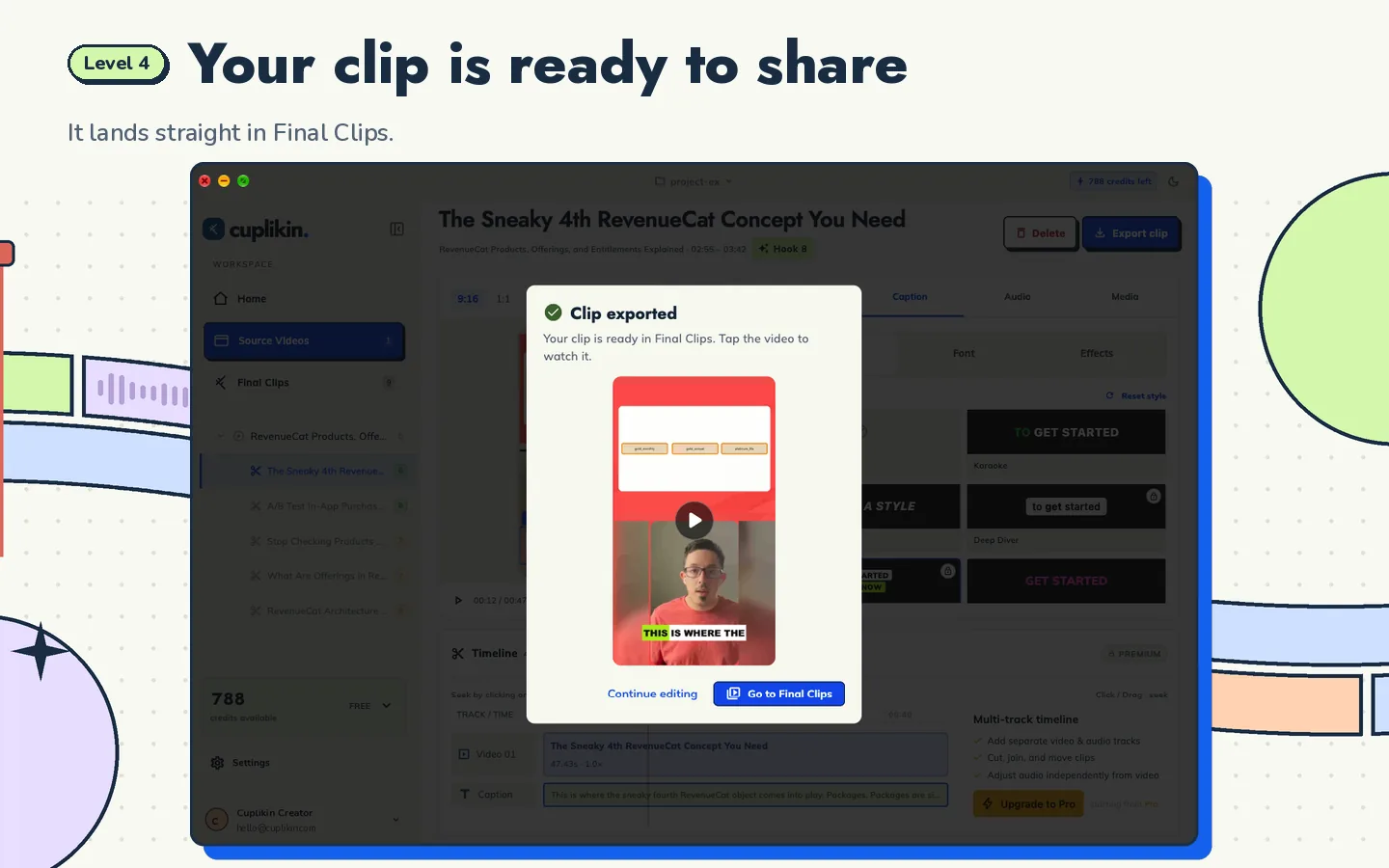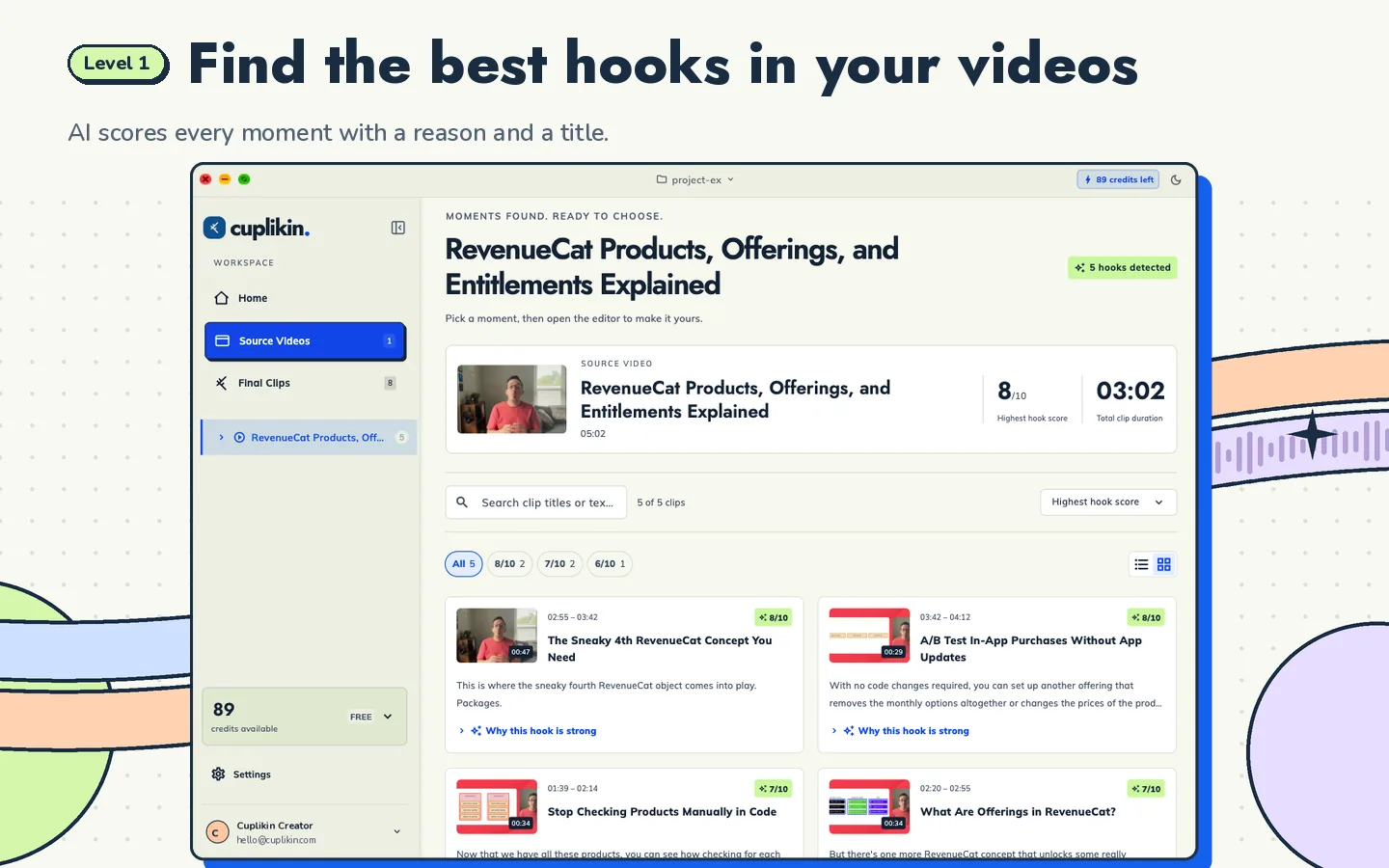
Auto captions for short videos work best when you start from an accurate timestamped transcript, correct it before styling, and then choose a caption style that is large, short and placed clear of the platform's buttons. Word-by-word highlighting helps viewers follow along, and a consistent style makes your clips recognizable.
This guide covers why captions matter, how to get them accurate, which styles suit which content, and where to place them in a 9:16 frame.
Why captions matter for short videos
Short videos are watched in all kinds of places: on a bus, in a queue, late at night next to someone asleep. Many people watch with the sound off, at least at first. Captions let them follow the clip anyway.
Captions also help when:
- The speaker talks fast or has a strong accent
- The audio has background noise
- Viewers are watching in a second language
- People are deaf or hard of hearing
And for talking-head content, captions give the eye something to follow, which makes a static shot feel more active.
Auto captions vs. platform captions
TikTok, Instagram and YouTube all offer some form of automatic captions inside their apps. They are convenient, but you get limited control over style, accuracy and placement, and the feature set may differ between platforms or change over time. Check each platform's help center for current options, for example YouTube Help or Instagram Help.
Burning captions into the video before you post gives you:
- One consistent style across every platform
- Control over size, position and highlight
- Accuracy you have already checked
- The same result whether or not the viewer has captions turned on
The trade-off is that burned-in captions cannot be switched off. For short-form clips, most creators accept that.
Step 1: Get an accurate transcript
Captions are only as good as the transcript under them. A misheard name or a wrong word in large animated text is very noticeable.
- Transcribe the full video with timestamps.
- Play the video and read along.
- Fix names, brands, technical terms and slang.
- Fix punctuation where it changes meaning.
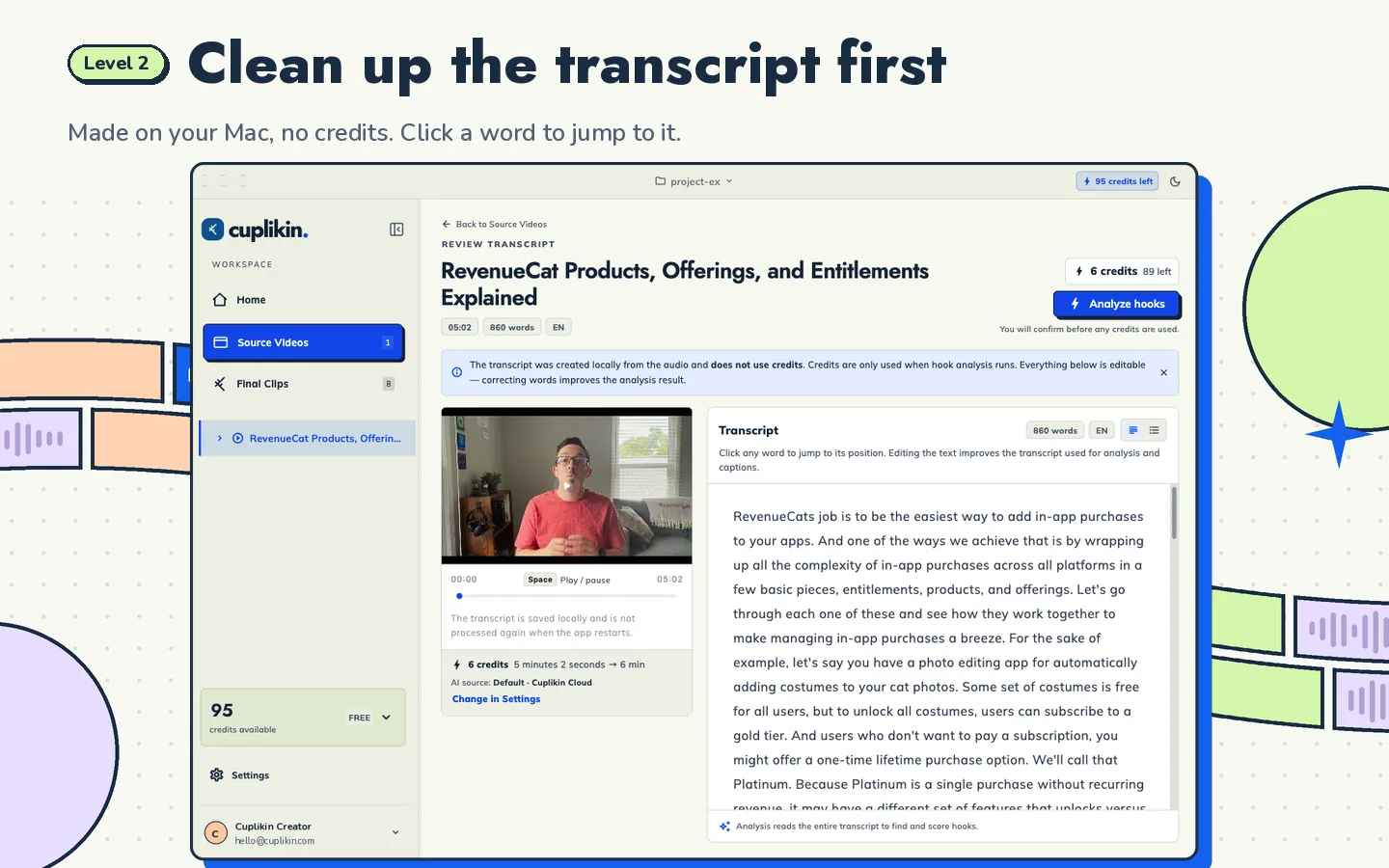
In Cuplikin, transcription runs on-device or with Cuplikin Cloud. You review the timestamped transcript while the video plays, click any word to jump to it, and correct words before continuing. Later, word-level transcript editing in the editor updates captions too, so a fix in the text is a fix on screen.
Step 2: Choose a caption style
Different content suits different styles. Here are the main families.
Karaoke style
Every word appears in the line, and the current word is highlighted as it is spoken. Good for steady talking-head content, lessons and podcasts. It is easy to read and keeps the eye moving.
Bold, high-energy style
Big, punchy words, often one to three at a time, with strong color and outline. Good for fast commentary, reactions and entertainment. Use carefully on calm content, where it can feel too loud.
Boxed or highlighted style
Text sits on a colored box or the current word gets a background highlight. Good when the video is busy or bright, because the box guarantees contrast.
Minimal style
Plain, clean text with a subtle shadow. Good for interviews, brand content and anything where the visuals matter.
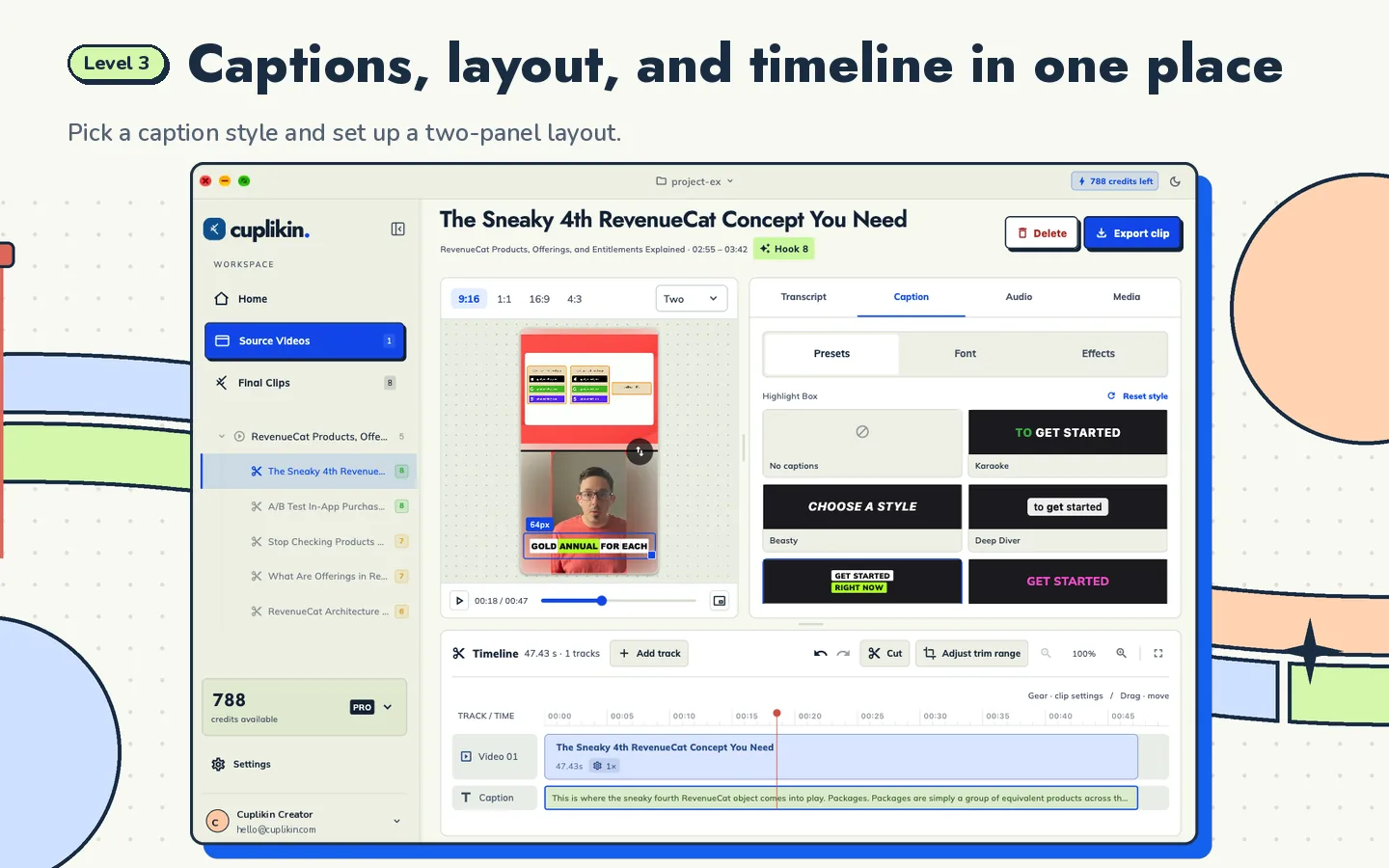
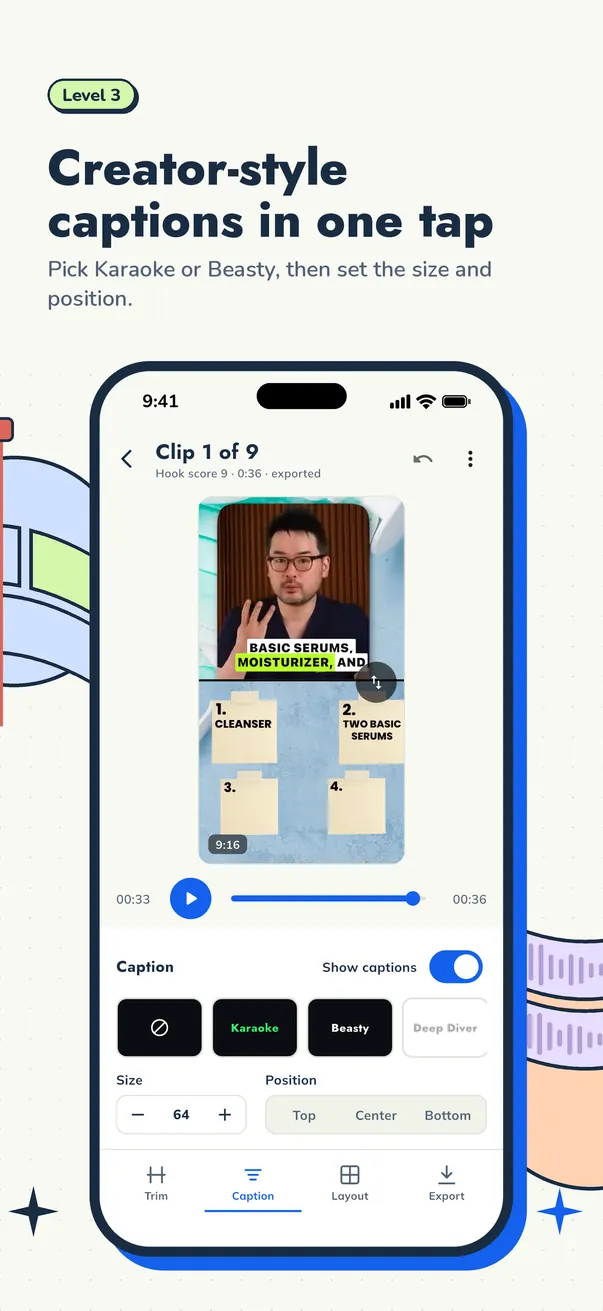
Cuplikin includes caption presets such as Karaoke, Beasty, Deep Diver and Highlight Box, and supports word-by-word highlight. Pick one as a starting point and adjust from there.
Step 3: Set size and line length
On a phone screen, small captions get skipped. Practical guidelines:
- Make captions large enough to read at arm's length
- Show two to five words at a time for fast speech
- Keep to one or two lines
- Use a strong outline, shadow or box for contrast
- Avoid thin fonts and low-contrast colors
Step 4: Place captions in the safe area
Every platform overlays its own buttons, usernames and descriptions on top of your video. The right side usually has action buttons, and the bottom has the caption and account name. Exact layouts change, so check the current app.
General placement:
- Center or slightly below center works for most talking-head clips
- Top works when the speaker's face is low in the frame, or with a two-panel layout where the lower panel holds the speaker
- Bottom only if you leave enough space above the platform's own text
Cuplikin lets you set caption position to top, center or bottom and adjust size to suit the layout.
Captions with vertical and two-panel layouts
When you reframe a horizontal video to vertical, captions and framing need to work together. In a two-panel layout with slides on top and the speaker below, captions often sit best between the panels or at the top. With a single tight crop on the speaker, center or lower-center usually works.
See how to convert horizontal video to vertical and aspect ratios for TikTok, Reels and Shorts for framing details.
Common caption mistakes
- Leaving transcription errors. They are louder in captions than in audio.
- Too many words on screen. Viewers stop reading and start scrolling.
- Captions under the platform's buttons. Check on a real phone before posting.
- Changing style every clip. A consistent look helps people recognize your content.
- Covering the speaker's face. Keep the face clear, especially the eyes and mouth.
Captions as part of the full workflow
Captions are one step in turning long recordings into clips. The best captions come from good hooks and clean trims. For the full process, read the pillar guide on how to turn long videos into short clips. Podcasters should also read how to turn a podcast episode into Shorts, Reels and TikToks, since captions carry most of the message in talk-heavy content. And if you are starting out, how to become a video clipper covers how captions fit into client work.
FAQ
Are auto captions accurate enough to post without checking?
Not always. Automatic transcription is good, but it can miss names, brands and uncommon words. Always read through the transcript once before you style captions. In Cuplikin, you can correct words while the video plays.
What is the best caption style for Reels and TikTok?
There is no single best style. Karaoke-style word highlighting suits most talking content, bold punchy styles suit high-energy clips, and boxed styles help on busy backgrounds. Choose one that matches your content and use it consistently.
Where should I put captions in a vertical video?
Usually center or slightly below center, away from the platform's buttons on the right and its text at the bottom. Move them to the top when the speaker sits low in the frame. Check on a phone before posting.
Try it with Cuplikin
Cuplikin creates timestamped transcripts, lets you correct them, and turns them into captions with presets like Karaoke, Beasty, Deep Diver and Highlight Box, plus size, position and word-by-word highlight. Exports have no watermark. It is free to download for Mac, iPhone, iPad and Android. Download Cuplikin.