The best aspect ratio for TikTok, Instagram Reels and YouTube Shorts is 9:16, a full-screen vertical frame. The standard size is 1080×1920 pixels. Use 1:1, 16:9 or 4:3 only when you have a specific reason, such as posting to a feed, keeping a wide shot intact, or reusing a clip somewhere other than a short-video feed.
That's the short answer. The rest of this guide explains what each ratio is good for and what happens when you post the wrong one. It also covers how to reframe a horizontal podcast or webinar so the speaker stays in the shot.
What is an aspect ratio?
An aspect ratio is the shape of the frame, written as width:height. A 16:9 video is wide, like a TV or a YouTube video. A 9:16 video is the same shape turned on its side, which is tall like a phone screen. A 1:1 video is square, and 4:3 is a slightly wider-than-square shape that older cameras and many slide decks use.
Resolution is a different thing. It's the number of pixels inside that shape. A 9:16 clip can be 720×1280, 1080×1920 or 2160×3840. They all have the same shape, with more detail as the numbers go up. If you want to go deeper on resolution, frame rate and bitrate, see our guide to export settings for TikTok, Reels and Shorts.
The aspect ratio for Reels, TikTok and Shorts: 9:16
All three short-video feeds are built around a phone held upright. A 9:16 clip fills the whole screen, so nothing else on the screen competes with it. For clips cut from podcasts, interviews, lessons and streams, 9:16 should be your default.
A few practical notes:
- Export at 1080×1920 unless you have a reason to go higher. It's the widely used standard for vertical video.
- Keep important things away from the very top and bottom of the frame. Each app puts buttons, usernames and captions there, so faces and on-screen text should sit toward the middle.
- Check each platform's current guidance before you post. Upload rules and limits like maximum length change over time, so look at the official help pages: YouTube Help, Instagram Help Center and TikTok Support.
When to use 1:1, 16:9 or 4:3 instead
Vertical isn't always the right choice. Here's a quick comparison.
| Aspect ratio | Shape | Good for | Watch out for |
|---|---|---|---|
| 9:16 | Tall, full screen | TikTok, Reels, Shorts | Wide shots need reframing |
| 1:1 | Square | Feed posts, carousels, places where the clip may be cropped | Leaves empty space on a full-screen feed |
| 16:9 | Wide | YouTube main channel, websites, presentations | Looks small on a vertical feed |
| 4:3 | Slightly wide | Slide-heavy content, older footage | Rarely the best choice for short feeds |
1:1 is a safe middle ground. It shows more of a wide scene than 9:16 and still takes up a good share of a phone screen. It works well when one clip has to go to several places.
16:9 makes sense when the clip will live on a normal YouTube channel, a landing page or inside a presentation. Posted as-is to a vertical feed, it shows up as a thin strip with bars above and below.
4:3 is useful when the source is a slide deck or a screen recording made in that shape. It saves you from cropping the slides.
What happens if you post the wrong aspect ratio
If you upload a 16:9 clip to a vertical feed, the app usually letterboxes it, which means a small horizontal video in the middle of a black or blurred screen. The speaker's face ends up tiny and captions are hard to read.
If you crop a 16:9 video to 9:16 with a plain center crop, you keep the middle third of the frame. That's fine when the speaker sits in the center. In a two-person podcast, though, a center crop often lands on the gap between the hosts, so you see a shoulder and a microphone.
There are a few ways to fix this:
- Crop to the speaker. Move the crop window so the person talking fills the frame.
- Use a two-panel layout. Stack two parts of the original frame, for example slides on top and the speaker below.
- Use Fit instead of Fill. The whole wide frame stays visible inside the vertical canvas, and you fill the empty space with captions or a title.
We cover these step by step in how to convert horizontal video to vertical without losing the speaker.
Fill vs Fit: which one to pick
Fill scales the video until it covers the whole frame and crops whatever doesn't fit. Use it when one person is talking and you can frame their face.
Fit scales the video until all of it is visible and leaves empty space around it. Use it when every part of the shot matters, such as a whiteboard, a product demo or a wide shot of a panel.
For most talking-head clips, Fill with a well-placed crop looks the most native on a vertical feed.
How to choose the aspect ratio in Cuplikin
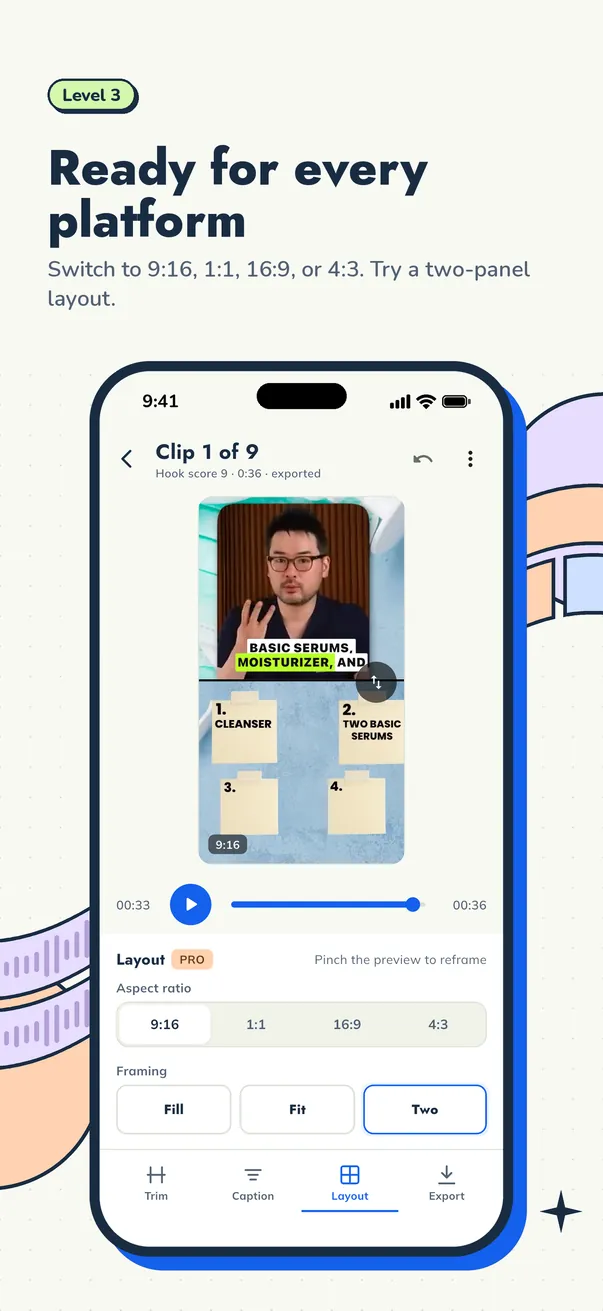
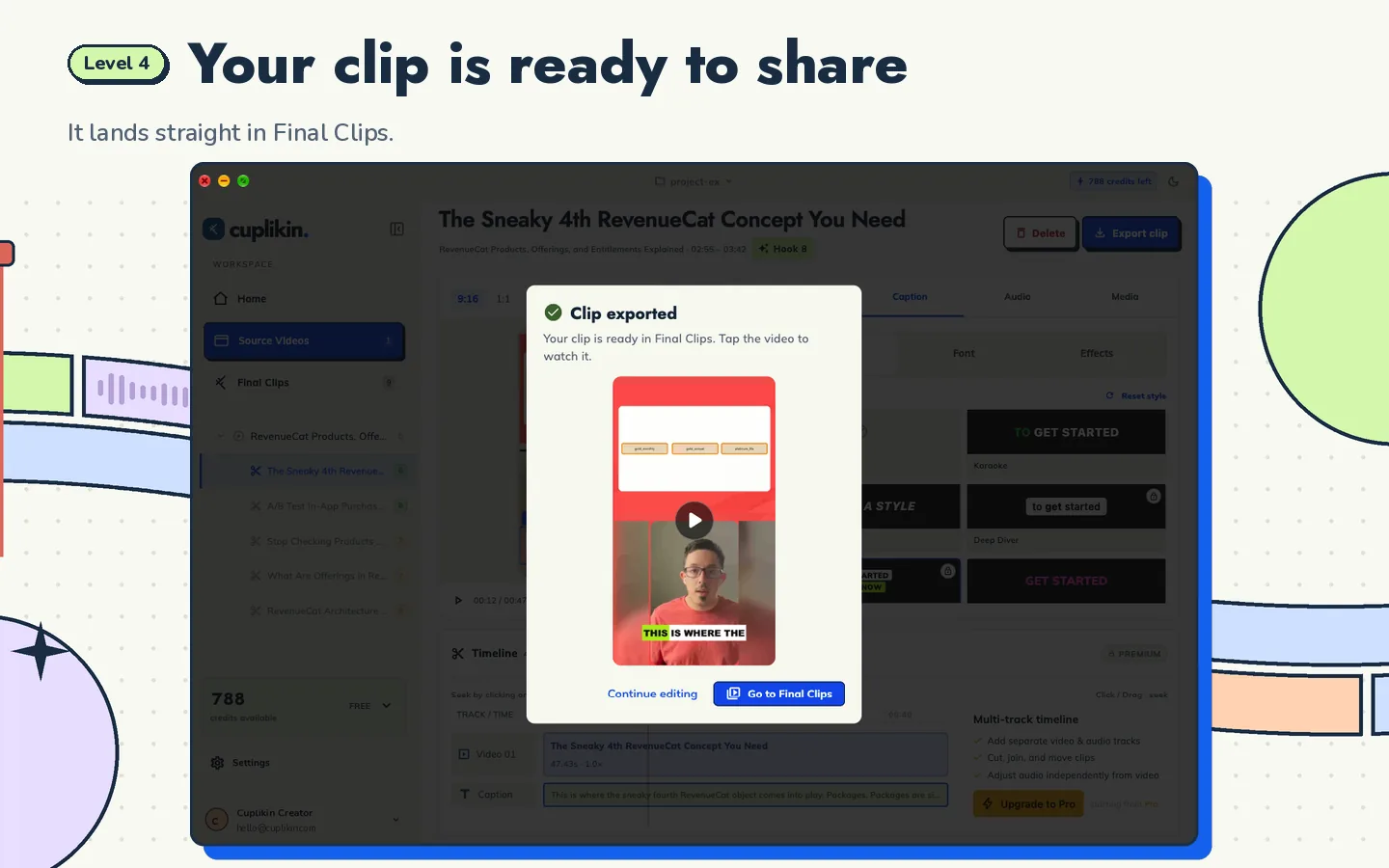
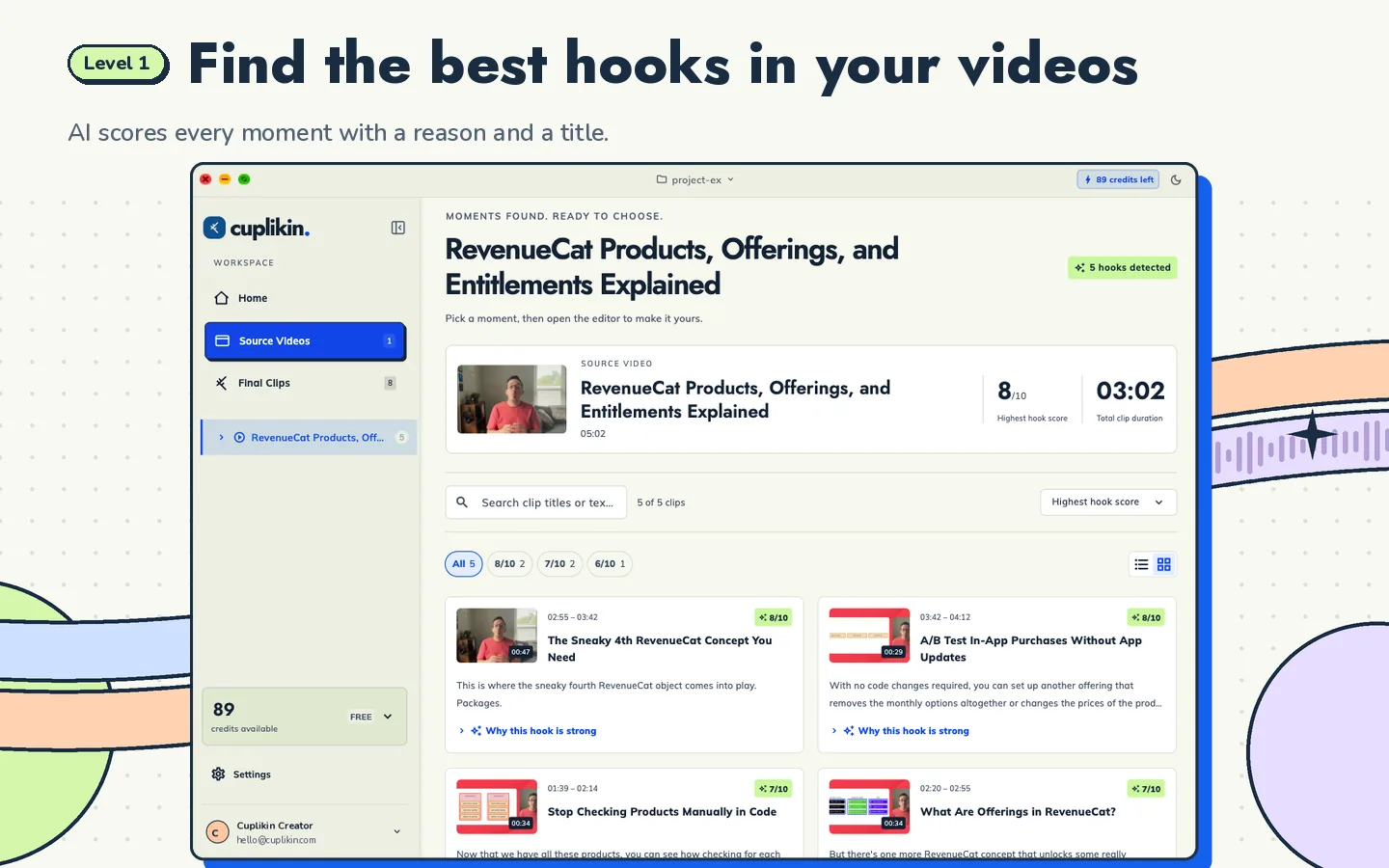
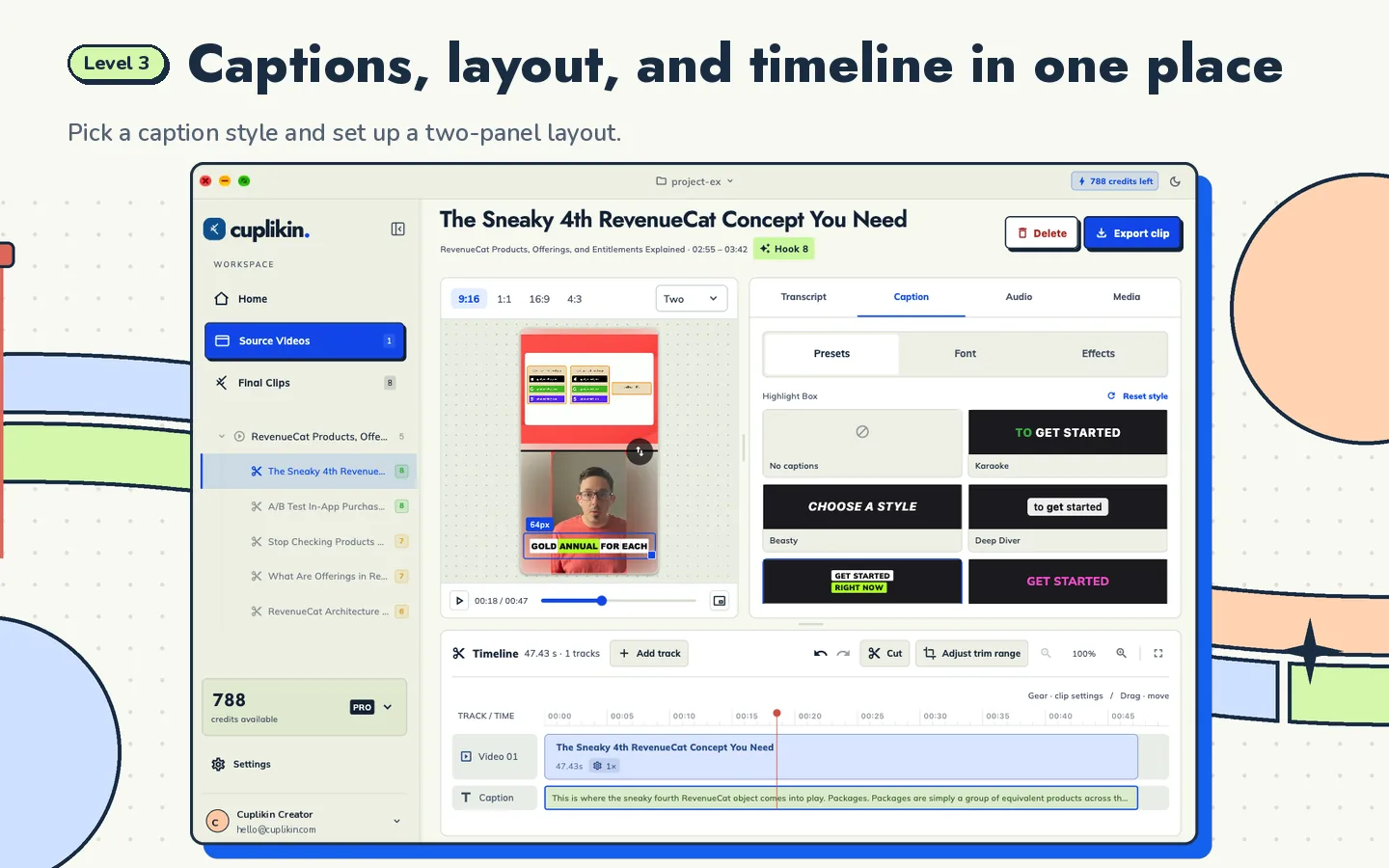
In Cuplikin you pick the layout per clip, after the AI has found your hooks and you've cleaned up the transcript. The layout options are:
- Aspect ratios: 9:16, 1:1, 16:9 and 4:3. On Mac there's also a 9:8 crop.
- Fill or Fit, depending on whether you want to cover the frame or show everything.
- Two-panel layout, which stacks two areas of the source, for example slides on top and the speaker below.
- Crop panel to frame the speaker's face, with pinch to zoom on phones.
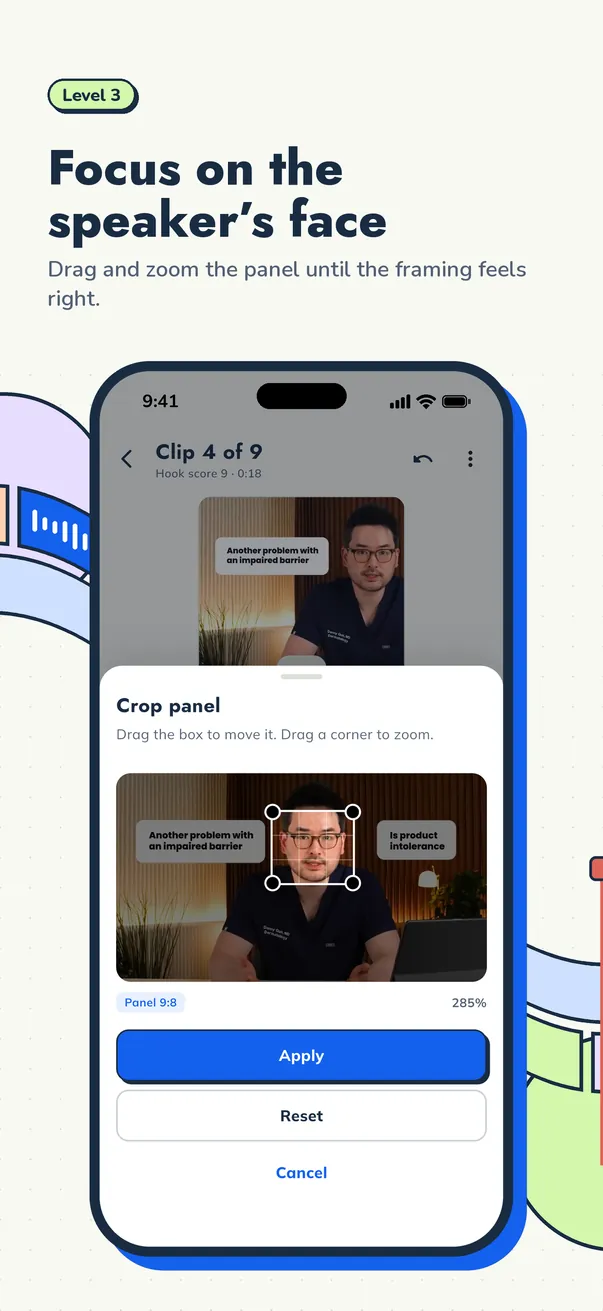
The preview updates as you change the layout, so you can see where captions will sit before you export. If you haven't chosen a caption style yet, read auto captions for short videos for styles that stay readable in a vertical frame.
A simple rule of thumb
- Posting to TikTok, Reels or Shorts? Use 9:16, 1080×1920.
- Posting to a feed or reusing the clip in several places? Consider 1:1.
- Keeping it on a YouTube channel or a website? Keep 16:9.
- Source is mostly slides? Try 4:3, or a two-panel 9:16 with the slides on top.
Aspect ratio is one step in a longer workflow. For the full process, from importing a long video to exporting finished clips, read the pillar guide: how to turn long videos into short clips.
FAQ
What is the best aspect ratio for Instagram Reels?
9:16 vertical, usually exported at 1080×1920. It fills the phone screen without bars. Keep faces and text away from the top and bottom edges where the app shows its own buttons and captions.
Can I post a 16:9 video to TikTok or YouTube Shorts?
You can, but it will usually appear as a small strip with empty space above and below. For clips from podcasts or interviews, reframe to 9:16 by cropping to the speaker or by using a two-panel layout.
Is 1:1 or 9:16 better for short clips?
For full-screen short-video feeds, 9:16 is better because it uses the whole screen. 1:1 is useful when the same clip goes to several places, or when you need to keep more of a wide shot visible.
Try it with Cuplikin
Cuplikin finds the strongest moments in a long video, then lets you switch between 9:16, 1:1, 16:9 and 4:3, crop to the speaker or stack a two-panel layout before you export. Your projects and media stay on your device, and there's no watermark. Download Cuplikin for Mac, iPhone, iPad or Android.