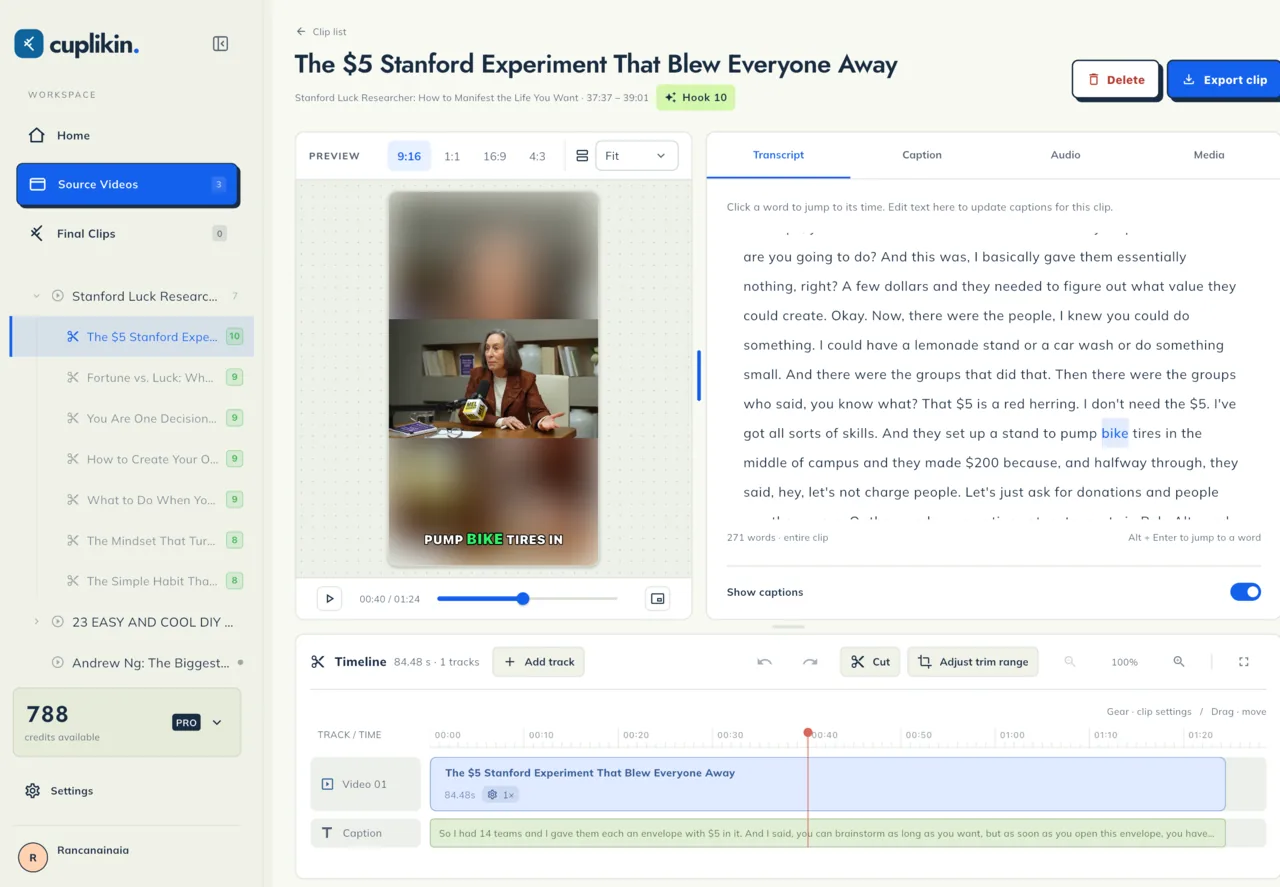
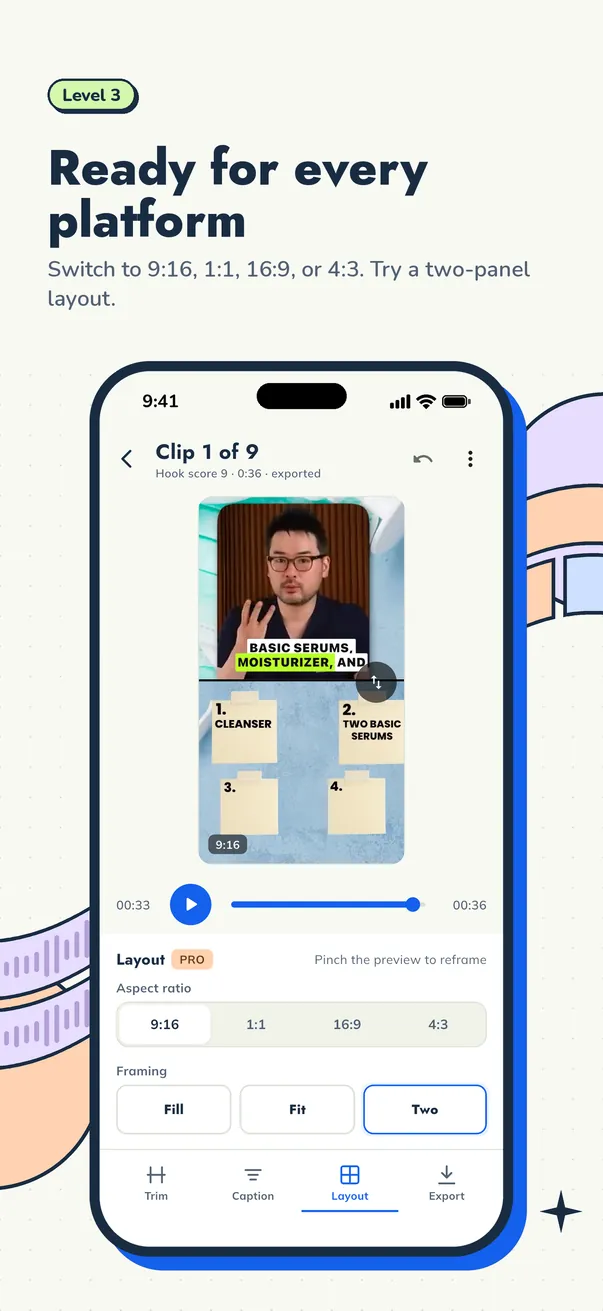
To clip a live stream, get the recording or VOD with the streamer's permission, mark the strong moments such as reactions, funny bits and clutch plays, cut each one to 20 to 60 seconds, stack the facecam and gameplay in a two-panel 9:16 layout, add captions and export. With a tidy workflow, one stream that runs for several hours can fill your posting schedule for days.
This guide is for streamers who want to clip their own streams and for stream clippers who work with them.
Step 1: Get the VOD with permission
A stream is the streamer's work. Before you cut and post anything, make sure you have permission, ideally in writing, including which account is allowed to post the clips.
Common sources for the recording:
- The streamer's local recording file. Best quality, because the platform has not re-compressed it. Ask for it through a file-sharing service.
- A VOD on the streaming platform, such as a Twitch past broadcast or a saved YouTube live stream. Convenient, but the quality is whatever the platform kept.
- Separate facecam and gameplay recordings, if the streamer records each source on its own track. This is the most flexible option for a vertical layout.
Respect the copyright of everything inside the stream, too. Background music, movie scenes or other people's videos watched on stream can get a clip flagged. When in doubt, pick another moment or cut the problem audio.
In Cuplikin, you can import a local file (MP4, MOV or MKV on Mac; Photos or Files on iPhone; the gallery on Android) or paste a supported URL such as YouTube, which is downloaded through the Cuplikin service. If a VOD link is not supported, ask the streamer for the file and import it locally.
Step 2: Handle 2 to 6 hours of footage
Rewatching a six-hour stream from start to finish is not realistic every time. Work faster instead:
- Ask the streamer for notes. Streamers often remember their best moments. A single message like "something funny happened around 2:10" can save you a lot of time.
- Use a timestamped transcript. With a transcript, you can search for words like "no way", "what" or an opponent's name and jump straight to the moment.
- Look for chat spikes if the platform offers a chat replay. A sudden burst of chat usually means something happened.
- Split the stream into blocks, for example one per hour, and work through one block per session so you do not burn out.
For very long videos, on-device transcription can take a while, especially on a phone. Cuplikin Pro users can choose faster cloud transcription; that option sends the audio to be transcribed, while on-device transcription sends nothing.
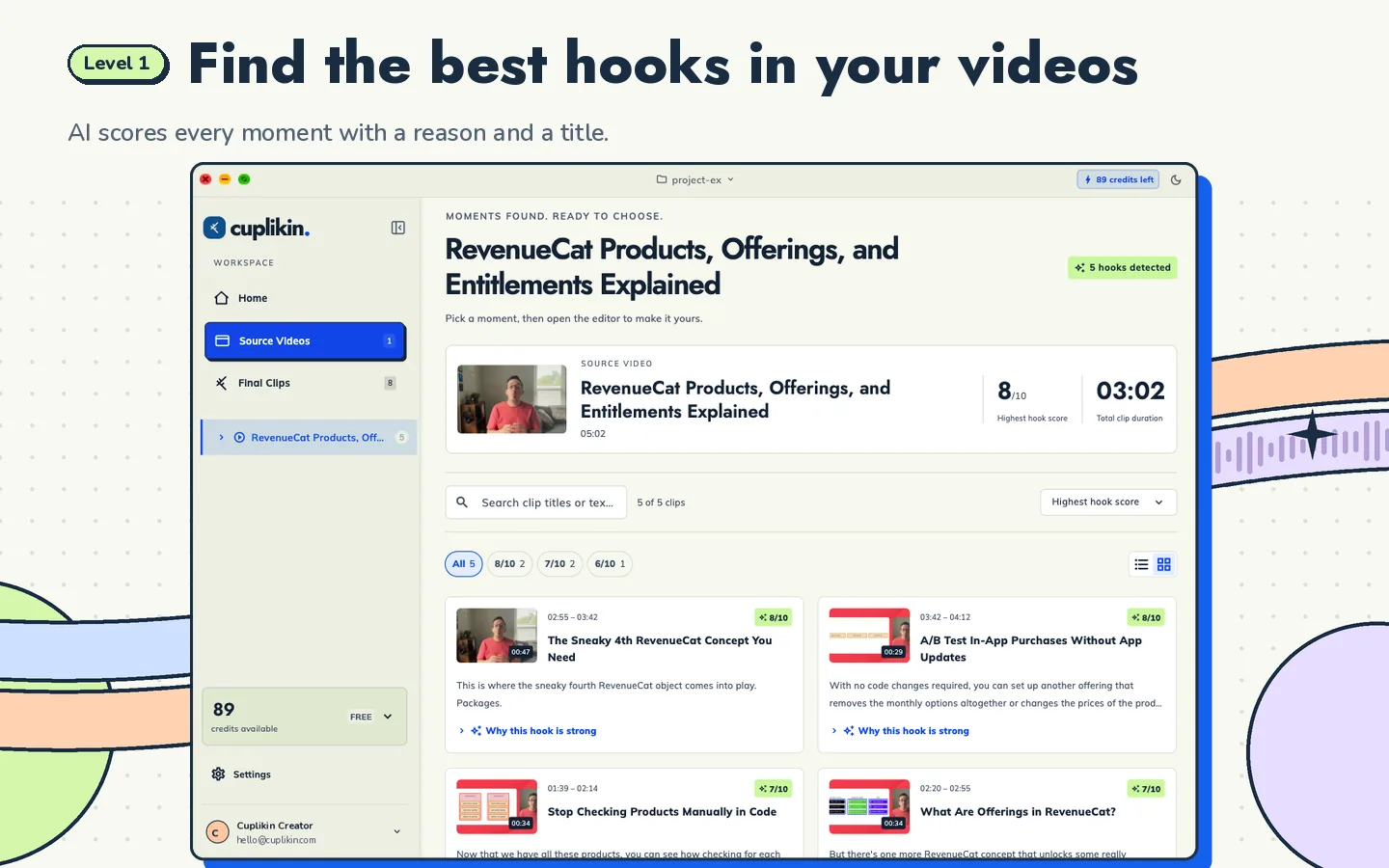
Cuplikin's AI hook detection then gives each segment a score from 1 to 10, a reason and title ideas, so you have a shortlist to check. Your video file is not uploaded for hook analysis. The score helps you filter, but you still watch the moment and make the call.
Step 3: Know what makes a strong stream moment
Good stream moments are different from good podcast moments. These usually work:
Reactions
Shock, rage, laughing so hard the streamer cannot talk. The facecam reaction is often the main reason people watch a stream clip.
Funny moments
Game bugs, slips of the tongue or spontaneous banter with teammates. Make sure the joke lands without the hour of context that came before it.
Clutch plays and skill moments
Winning from a nearly lost position, one-versus-many fights or rare plays. Start the clip a few seconds before the action so viewers understand what is at stake.
Chat interactions
The streamer answering an absurd chat message, reading a funny donation or taking a viewer's challenge. If the chat message matters, show its text as a caption or on-screen text.
Avoid moments that need too much context, such as community inside jokes that a newcomer will not get. The guide on how to find hooks in long videos goes deeper into judging moments.
Step 4: Stack facecam and gameplay in a two-panel 9:16 layout
Streams are usually horizontal 16:9 with a small facecam in a corner. A straight crop to 9:16 forces you to choose between the face and the gameplay. A two-panel layout solves this:
- Top panel: the facecam, cropped to the streamer's face.
- Bottom panel: the gameplay, cropped to where the action is.
A few tips:
- For games with an important HUD, such as a scoreboard or minimap, keep those elements inside the gameplay panel.
- If the moment is pure reaction, a single full-height panel of the face is often stronger.
- If the moment is pure gameplay with no reaction, crop to the gameplay only.
In Cuplikin, you can reframe to 9:16, crop to a face or use a two-panel layout. For more on cropping, see how to convert horizontal video to vertical.
Step 5: Add captions
Many people watch clips with the sound off. Captions help them follow the shouting, the jokes and the reactions.
- Fix the transcript first, especially game titles, character names and gaming terms that are often transcribed wrong.
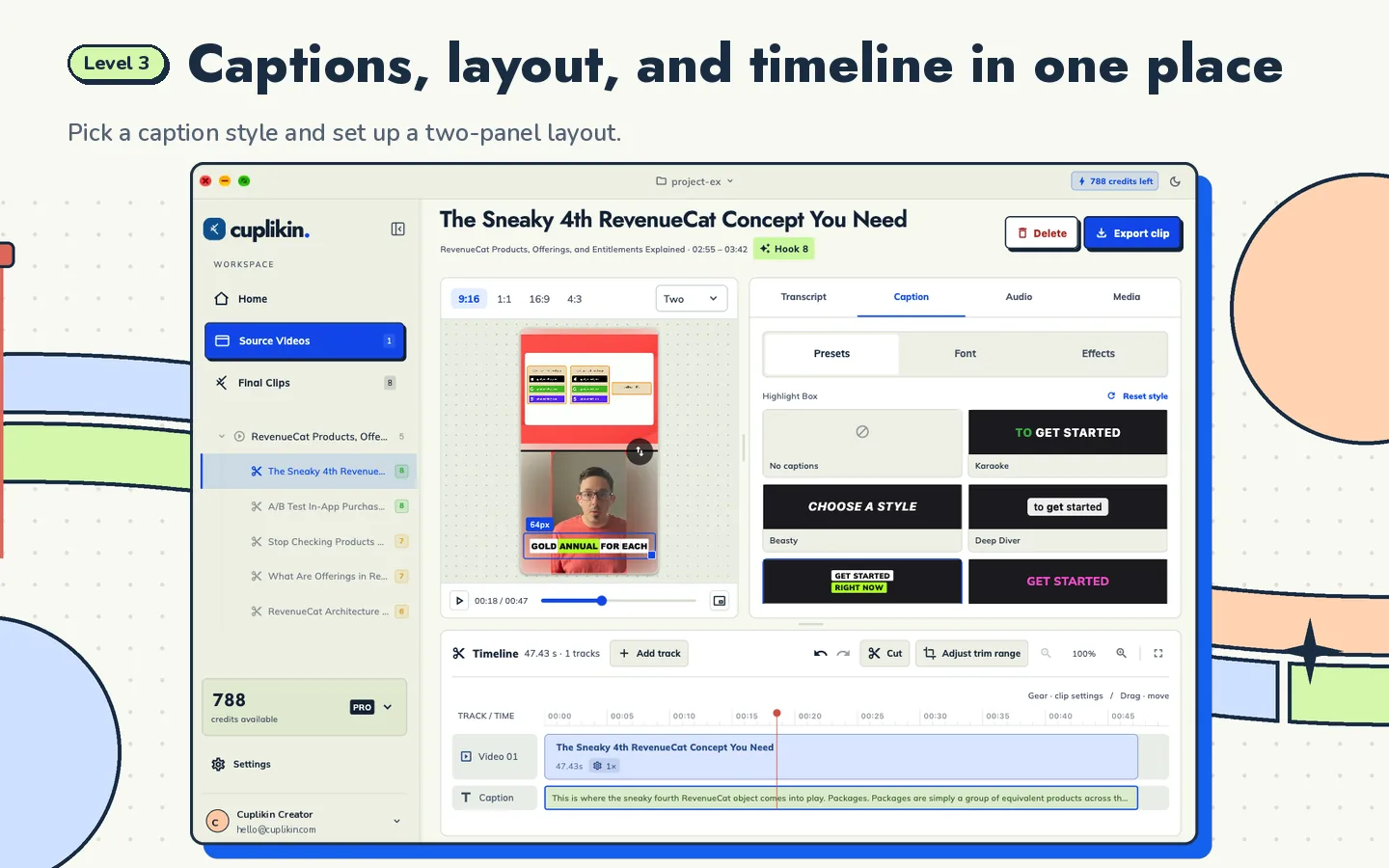
- Choose large, high-contrast captions. Presets such as Karaoke or Beasty suit high-energy clips.
- Place captions between the panels or in an area that does not cover the HUD or the face.
- Do not over-censor, but follow each platform's community guidelines.
In Cuplikin, edit the transcript word by word to fix captions. See also auto captions for short videos.
Step 6: Set a posting rhythm
A stream produces a lot of material at once, so it is tempting to post everything on the same day. Spread it out instead:
- One to three clips a day from the latest stream, as agreed with the streamer.
- Post the best clips first, while people are still talking about the stream.
- Keep backup clips for days when the streamer is not live.
- Mention the stream schedule in the post caption so clip viewers know when to catch the stream live.
No posting rhythm guarantees views. Watch which clips perform, then adjust the kinds of moments you cut.
Step 7: Work well with the streamer
If you are a stream clipper, a clear working relationship matters as much as the editing:
- Agree on who posts, on which account, and whether the clips may be monetized.
- Ask for a list of topics or moments that must not be posted, such as personal details that showed up on stream by accident.
- Decide how the streamer sends VODs and how fast clips need to be ready.
- Deliver clips in batches with clear file names and titles.
If you are still looking for streamers to work with, read how to get your first clipping client. The full workflow from long video to finished clip is in how to turn long videos into short clips.
FAQ
Can I clip someone else's stream without permission?
It is better not to. A stream is the streamer's work, and posting clips of it without permission can infringe copyright and break platform rules. Ask first, ideally in writing, and agree on which account will post the clips.
How long should a stream clip be?
Most stream clips work in the 20 to 60 second range. Start a few seconds before the main moment, end right after the reaction and cut any dead air.
Can I clip streams on my phone?
Yes. Cuplikin runs on iPhone, iPad and Android with the same steps: import, transcribe, find hooks, trim, caption, reframe and export. For very long VODs, cloud transcription on the Pro plan can help phones with less processing power.
Try it with Cuplikin
Cuplikin helps you turn long VODs into vertical clips: get a timestamped transcript, filter hook candidates with scores and reasons, trim, caption, stack facecam and gameplay in a two-panel layout and export without a watermark. It is free to download for Mac, iPhone, iPad and Android. Download Cuplikin and turn your next stream into clips.