Auto captions can be accurate if the audio is clean and you check the transcript before you export. The mistakes cluster in predictable places: names of people and brands, slang and filler words, numbers and currencies, strong accents, and speakers who switch between languages. Record with a mic close to the speaker's mouth, then check the transcript word by word in those risky spots.
This article is about getting the words right. For caption style, size, and placement in general, read auto captions for short videos.
Where auto captions usually go wrong
Speech-to-text engines learn from patterns in common speech. Podcasts, streams, and vlogs are full of things that fall outside those patterns, which is where errors creep in.
Names, brands, and product terms
Guest names, channel names, niche brands, and product jargon are the most embarrassing errors to let through. "Siobhan" becomes "Shivon", a startup called "Lumo" becomes "loom oh", and a framework name turns into two unrelated words. Viewers forgive a small typo, but a misspelled guest name looks unprofessional.
Slang, filler, and casual speech
"Gonna", "kinda", "lowkey", "ngl", and "y'know" are written many ways by humans, so engines are inconsistent too. Filler like "um", "uh", and "like" may be kept, dropped, or turned into a different word. Decide on one spelling for the whole clip.
Numbers, currencies, and units
"Twenty-five K" might appear as words, as "25K", or as "25,000". "Fifteen" and "fifty" are easy to confuse. Dollar signs, percentages, and units like "mg" or "GB" often disappear. In business or finance content, one wrong number can change the meaning of a clip.
Accents and fast talkers
Engines are usually most accurate on the accents they hear most often. Regional accents, non-native speakers, and people who talk fast or mumble produce more errors, often on short words that change meaning, such as "can" and "can't".
Code-switching for bilingual creators
Bilingual creators often switch languages mid-sentence: "So the jugaad approach is basically..." or a Spanish phrase dropped into an English story. Engines may force the borrowed word into the nearest-sounding English word or skip it. If your audience is bilingual, these words matter, so check every one.
Recording tips for more accurate transcripts
The best fix happens before you press record.
- Mic close to the mouth. A lavalier or dynamic mic sounds far cleaner than a camera mic two metres away.
- Cut echo and background noise. Carpets, curtains, and sofas help. Turn off noisy fans or air conditioning if you can.
- One person talks at a time. Crosstalk is the single biggest source of errors, especially in podcasts with three or more people.
- Say names clearly at the start. Ask guests to say their name and brand slowly once. It also gives you a reference for checking spelling later.
- Add music in the edit, not during recording. Music under a voice makes it hard for the engine to separate words.
If you clip other people's videos, you can't control the recording. Get the file with the best audio quality available.
How to check and fix the transcript word by word
Don't read the transcript from start to finish like a novel. Check it with a plan:
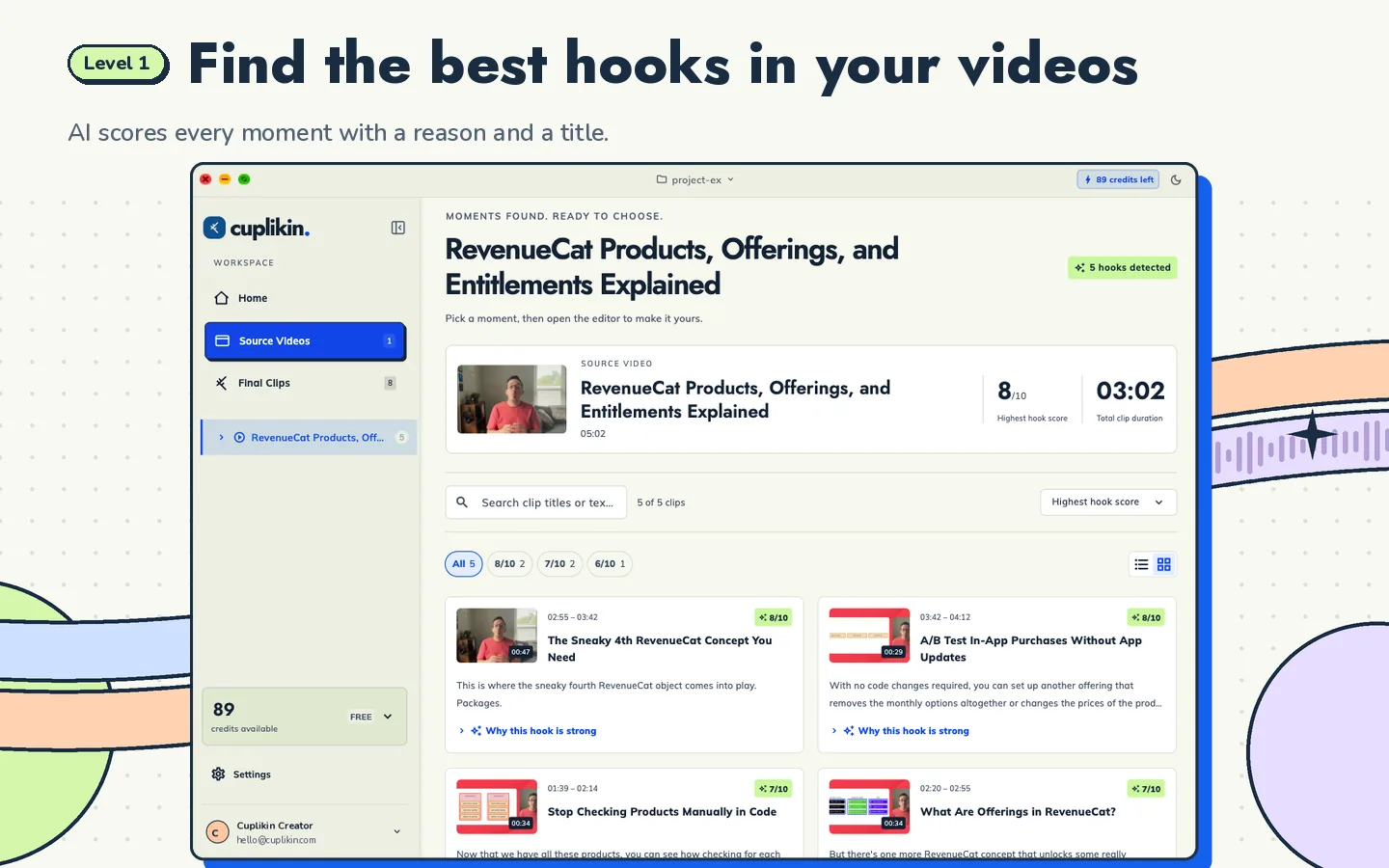
- Start with the clips you'll use. There's no need to fix a full two-hour transcript if you're cutting five clips. Focus on the segments that made your hook shortlist. If you're not sure how to choose them, read how to find hooks in long videos.
- Listen while you read. Your ears catch errors your eyes miss. Watch for words that sound different from what's written.
- Hunt the risky list. Check every name, brand, number, and borrowed word in the clip. Errors tend to gather there.
- Make spelling consistent. Pick "gonna" or "going to", "OK" or "okay", to match the speaker's style, and use it everywhere.
- Tidy the numbers. In captions, digits read faster than words: "$25K" is shorter than "twenty-five thousand dollars".
- Drop filler when it helps. "Um", "uh", and "you know" can come out of the caption to keep it tight, as long as the meaning doesn't change.
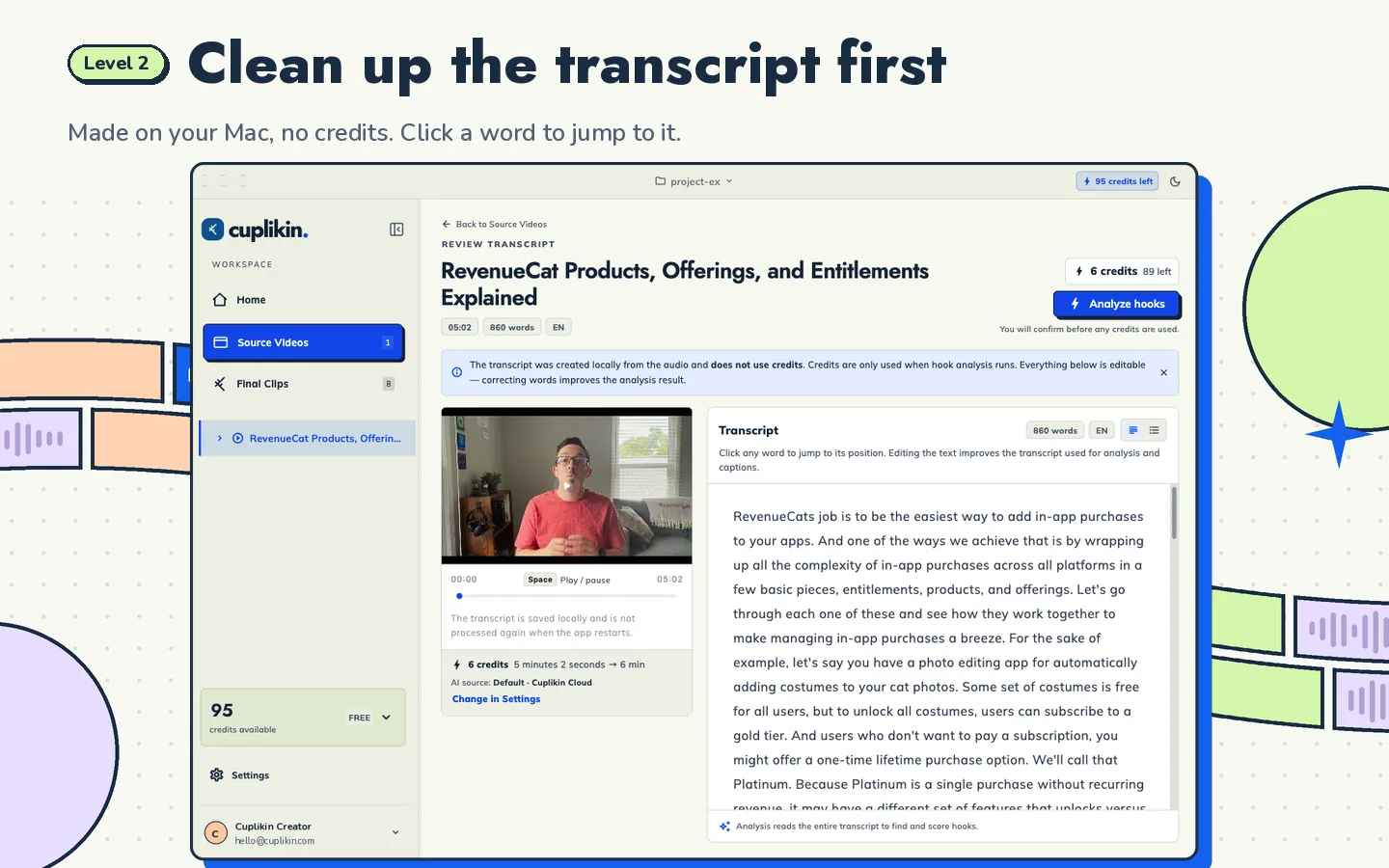
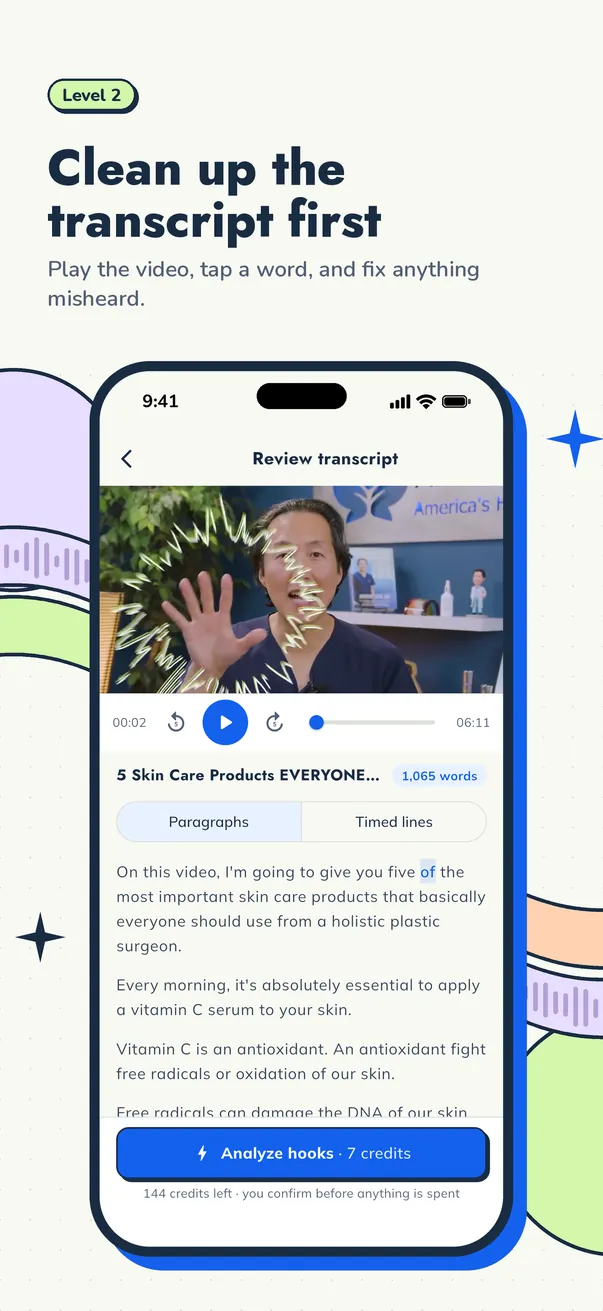
In Cuplikin, the transcript is timestamped. You can click a word to jump to that moment in the video, then edit the transcript word by word. Captions update with your edits, so you never retype subtitles.
On-device or cloud transcription?
Many apps now offer both, and each has its place.
| On-device transcription | Cloud transcription | |
|---|---|---|
| Where it runs | Your phone or laptop | The provider's servers |
| Speed | Depends on your device | Usually faster |
| Best for | Sensitive files, short videos, powerful devices | Less powerful phones, long videos |
| Data sent | Nothing | Audio is sent to be transcribed |
In Cuplikin, on-device transcription is available to everyone and sends nothing. Pro users can choose transcription through Cuplikin Cloud. It's optional and sends audio to be transcribed, so it helps when your phone struggles with a long podcast. Whichever you choose, still check the result; no engine is error-free on slang and names. If file privacy is your main concern, read how to clip videos without uploading to the cloud.
Caption styling that is easy to read
Accurate words still need to be readable on a small vertical screen. A few small adjustments help:
- Few words per screen. Two to four words at a time is easier to follow than a full sentence, especially on a 9:16 frame.
- Break at natural pauses. End a line after a phrase, not between "the" and the word that follows it.
- Highlight the key word. Word-by-word highlighting helps viewers keep up with fast talkers.
- Keep borrowed words as your audience writes them. If your viewers know a term in its original language, don't "correct" it into English in the caption.
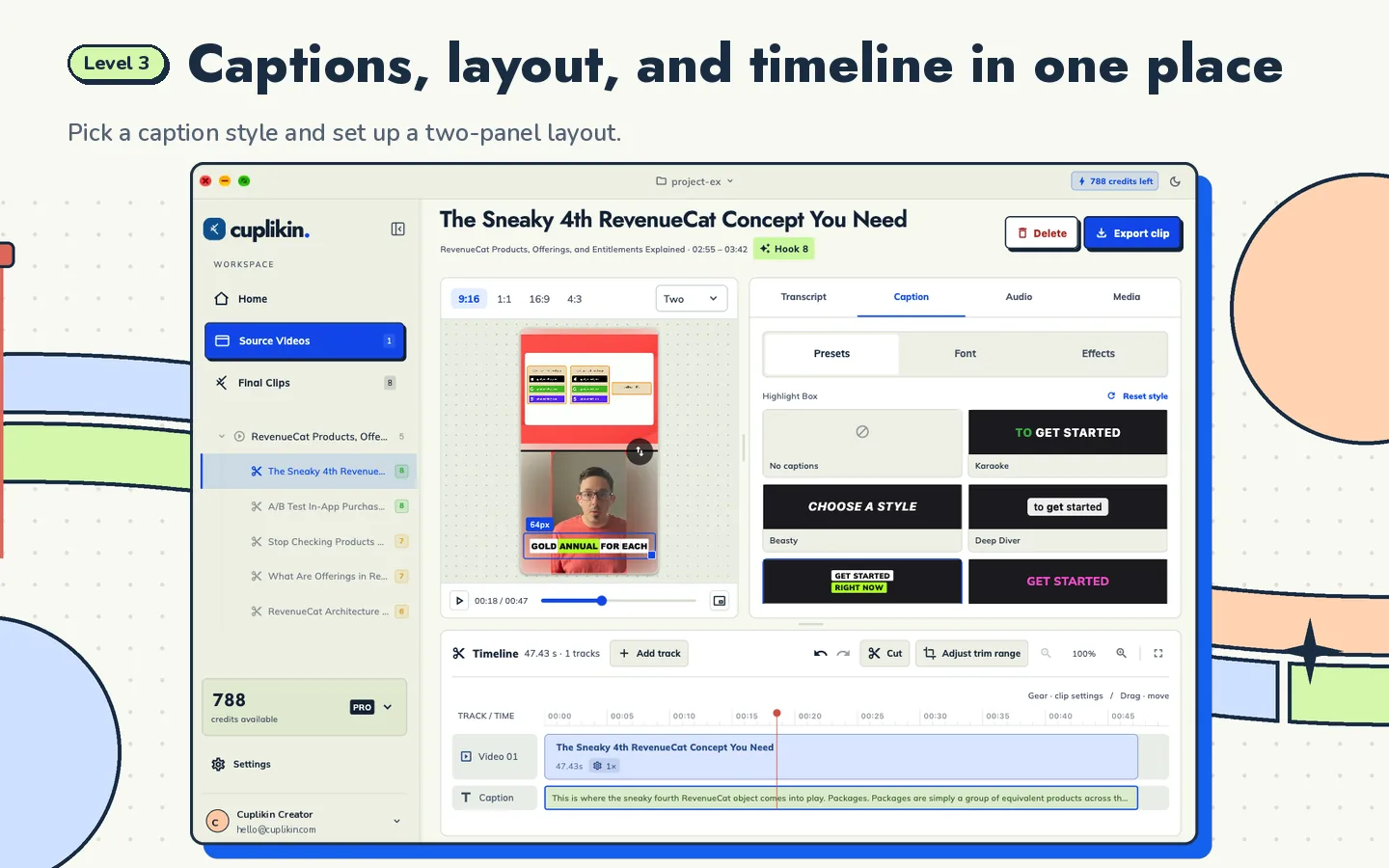
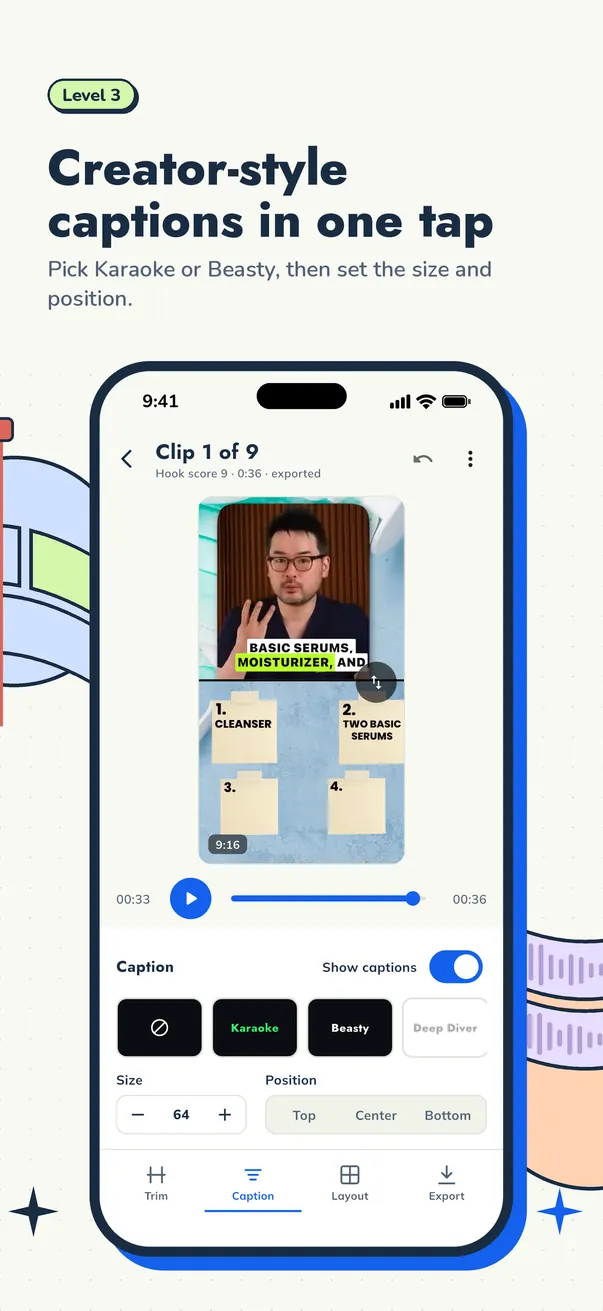
Cuplikin has caption presets called Karaoke, Beasty, Deep Diver, and Highlight Box, with adjustable size and position and word-by-word highlighting.
For the full workflow from long video to a clip ready to post, see how to turn long videos into short clips.
FAQ
Can I post auto captions without checking them?
It's better not to. Auto captions are usually right for most sentences, but names, brands, numbers, slang, and words from other languages still go wrong often. You only need to check those spots in the clips you'll actually post, not the whole video.
How can I make auto captions more accurate?
Record with a mic close to the mouth, reduce echo and noise, avoid people talking over each other, and keep music out of the recording. Then check the transcript while the video plays and fix wrong words before you export the captions.
Is on-device or cloud transcription better?
On-device transcription suits sensitive files and sends no data. Cloud transcription is usually faster and helps when your phone is less powerful or the video is long, but the audio is sent to a server. In Cuplikin, cloud transcription is an optional Pro feature.
Try it with Cuplikin
Cuplikin creates a timestamped transcript from your long video, lets you fix the transcript word by word, and turns it into captions with presets like Karaoke and Highlight Box. On-device transcription is free, and cloud transcription is available on Pro. Free to download for Mac, iPhone, iPad, and Android. Download Cuplikin.